Author a Gift
Step 1 — Benefit details. Pick name + display name + description, upload a Preview image.
Step 2 — When. Audience (default All registered members), expiry (calendar date or rolling), redemption window (start + end).
Step 3 — Actions. Pick the discount shape — Percent off, Free item, etc. — and configure the discount value.
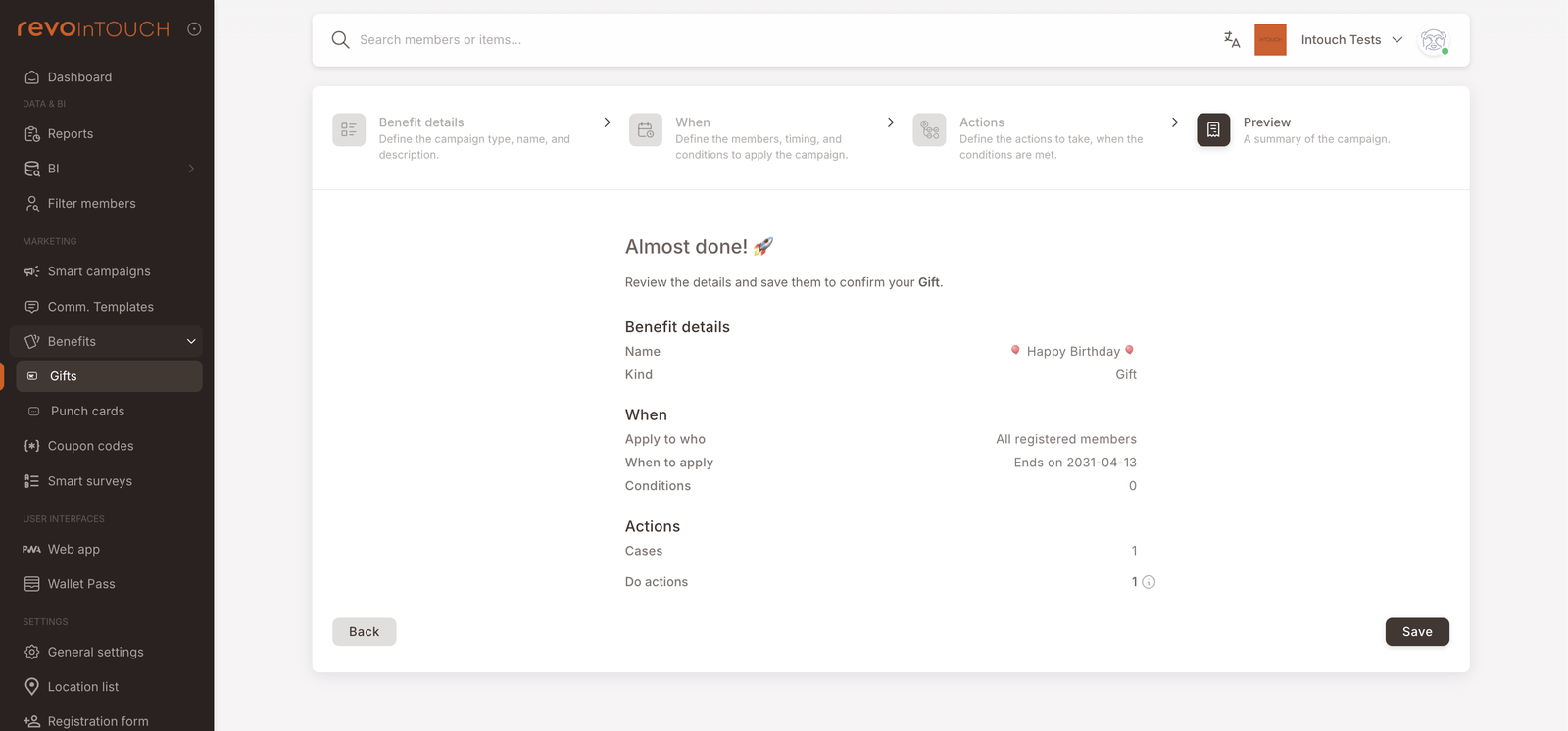
Step 4 — Preview. Recap, then Save.
The Gift is now Active and pickable from any Send asset action on a Rule or Future Campaign.
A Gift is a single-use asset that lives in the member's wallet until they redeem it or it expires. The Gift template defines what the asset looks like (artwork, name, description), when the member can use it (validity window), and what it does at the till (the discount).
Walkthrough
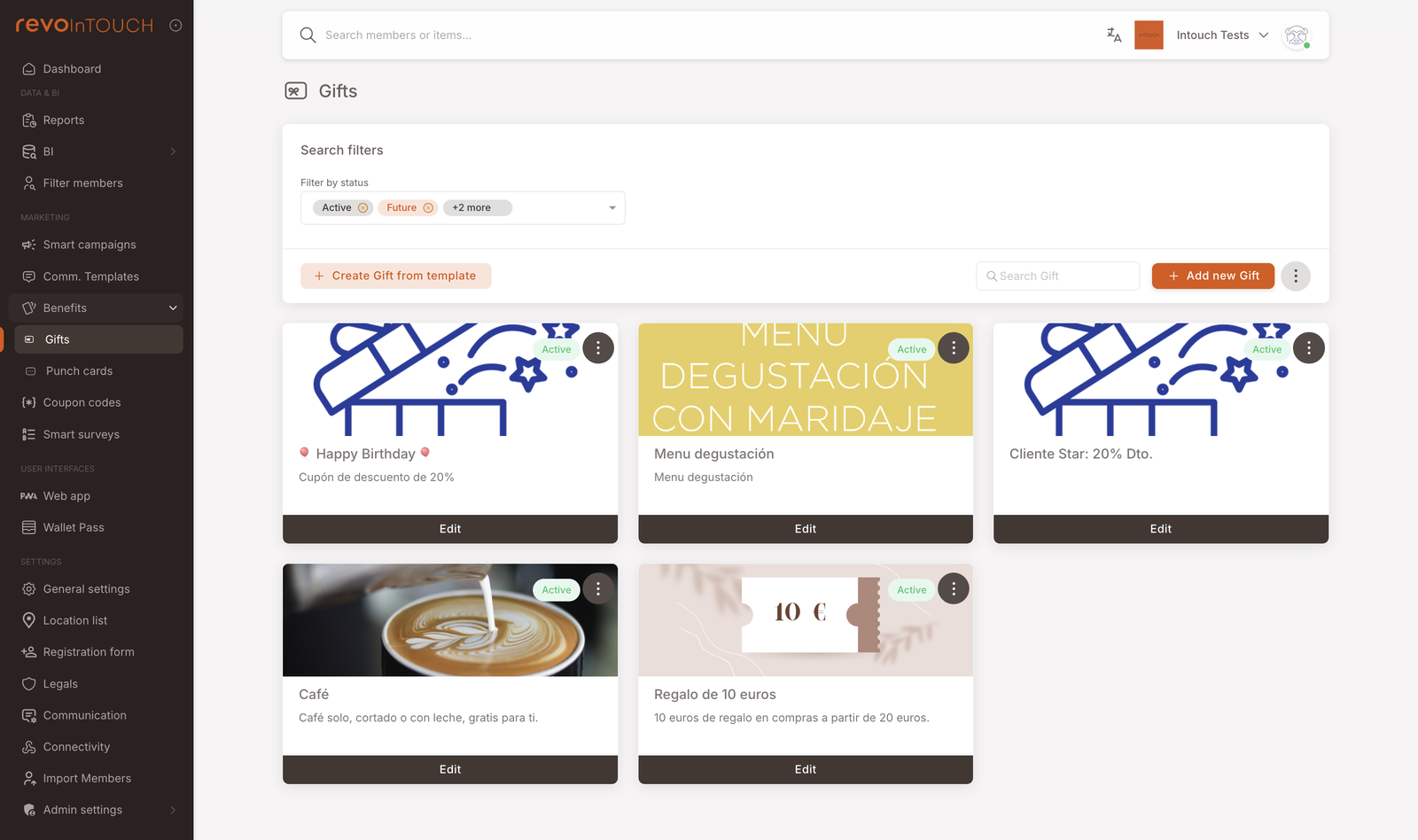
Open Benefits → Gifts in the left nav and click Add new Gift to open the four-step wizard. (The Create Gift from template button alongside it is a shortcut for cloning an existing Gift; the steps are the same once you're inside.)
Step 1 — Benefit details
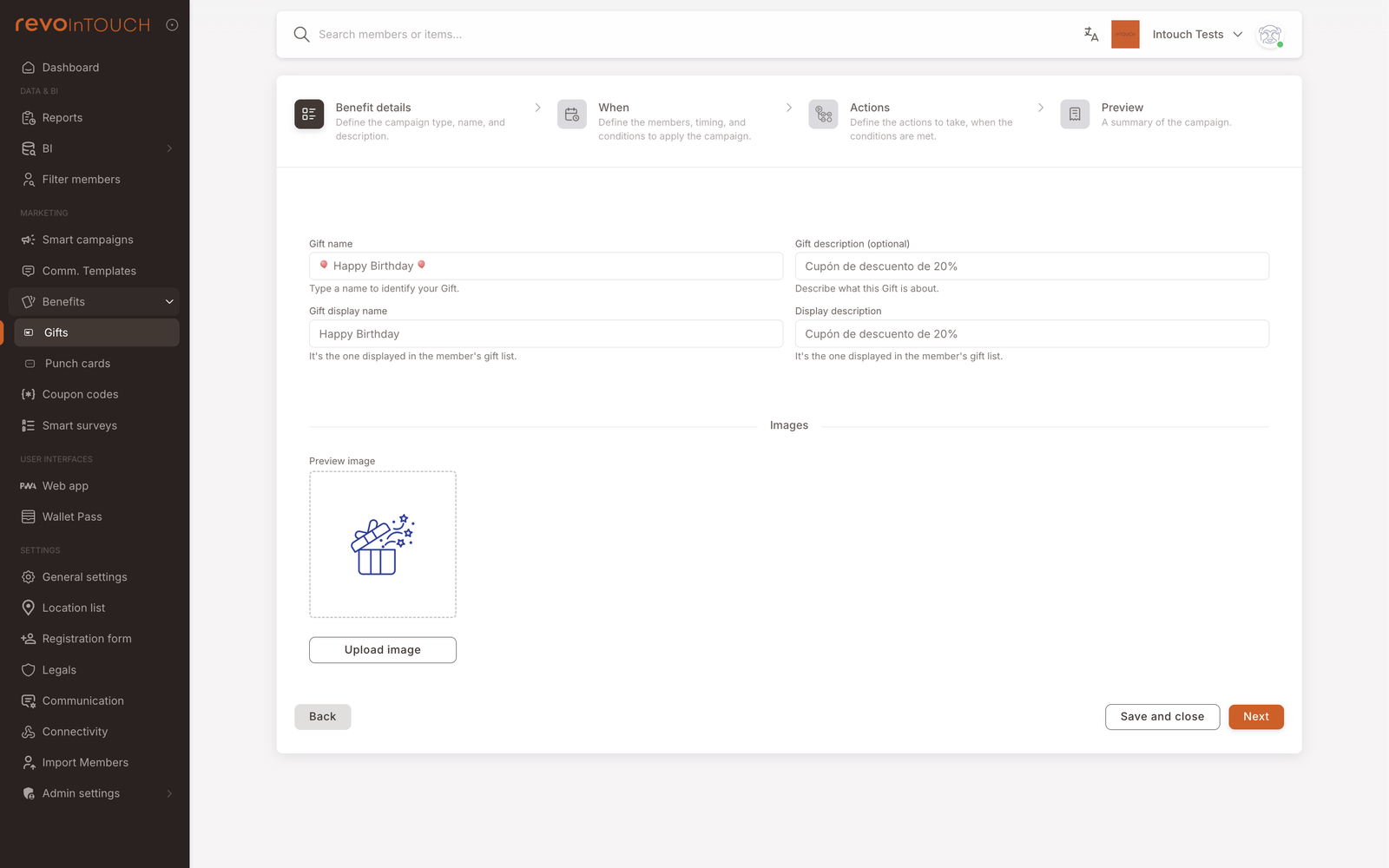
Name the Gift and upload its artwork. Three text fields and one image:
- Gift name — internal label. Used in the list view and in the Smart Campaigns Send asset action picker.
- Gift display name — the name the member sees in their wallet. Often the same as Gift name; sometimes friendlier (
Happy Birthdayinternal,🎉 Happy Birthday from <brand>!member-facing). - Gift description (optional) — internal note about what the Gift is for. Not shown to members.
- Display description — the description the member sees alongside the artwork in their wallet. Use it to clarify the offer ("20% off your next purchase") and any conditions ("Excludes alcohol", "Valid Mon–Fri").
- Preview image — the artwork shown on the wallet card. Square recommended; the upload accepts standard image formats.
Step 2 — When
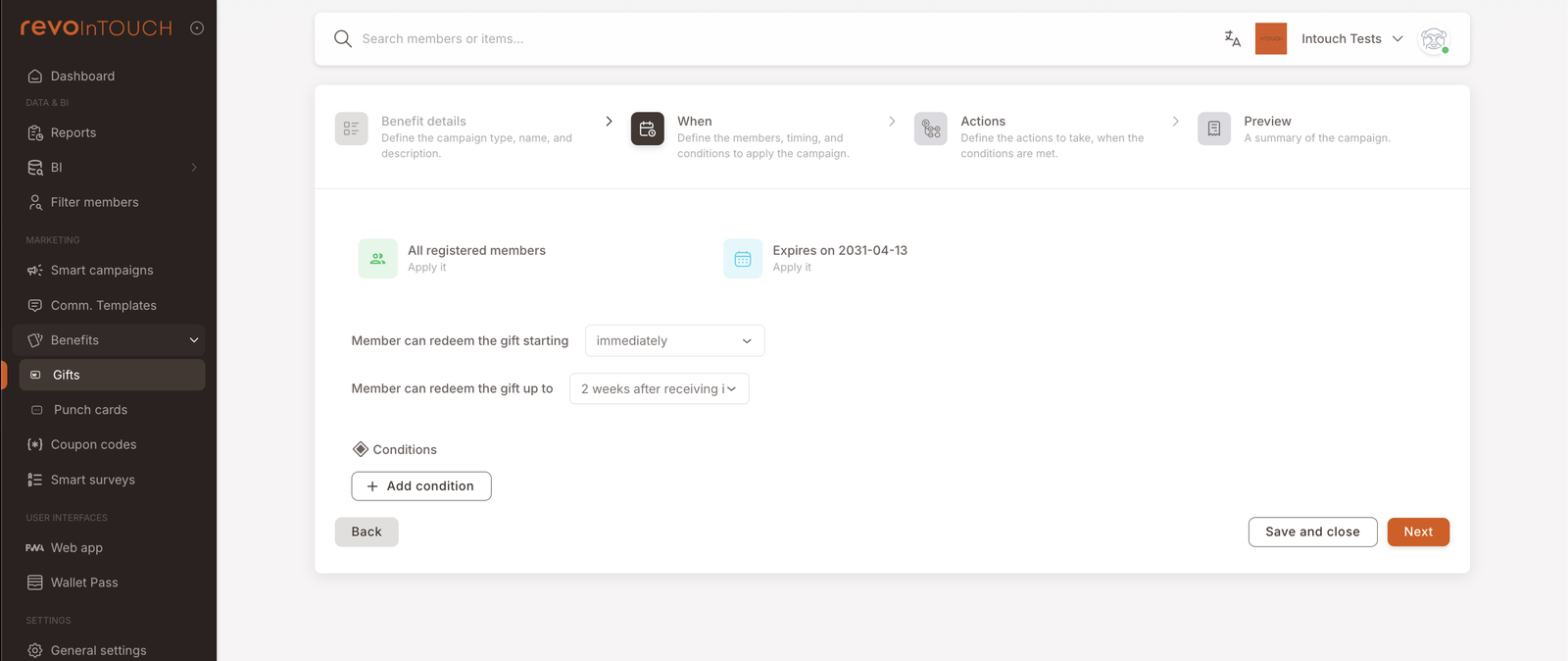
Step 2 sets who's eligible to receive this Gift, when it's valid, and the redemption window. Three tiles plus a Conditions section:
- Audience tile — defaults to All registered members. Click to narrow (e.g. only members with a specific tag). For most Gifts, the audience filtering happens on the Smart Campaign that issues the Gift, not here — leave at default unless the Gift itself should be unredeemable for certain segments.
- Expiry tile — when this Gift template stops being valid for new issuances. Expires on YYYY-MM-DD fixes a calendar date (the example screenshot shows a far-future Ends on 2031-04-13).
- Member can redeem the gift starting — when the receiving member can first use the Gift. Immediately is the default; In N days delays availability for "use it next visit" patterns.
- Member can redeem the gift up to — the redemption window's end. N weeks/days after receiving is typical (the example shows 2 weeks after receiving). Longer windows for higher-ticket / slower-cadence businesses.
- Conditions section — optional further filters on when the Gift can be redeemed (e.g. only at certain branches, only on certain dates). Most Gifts don't need this; the discount is the same regardless of where the member redeems.
Step 3 — Actions
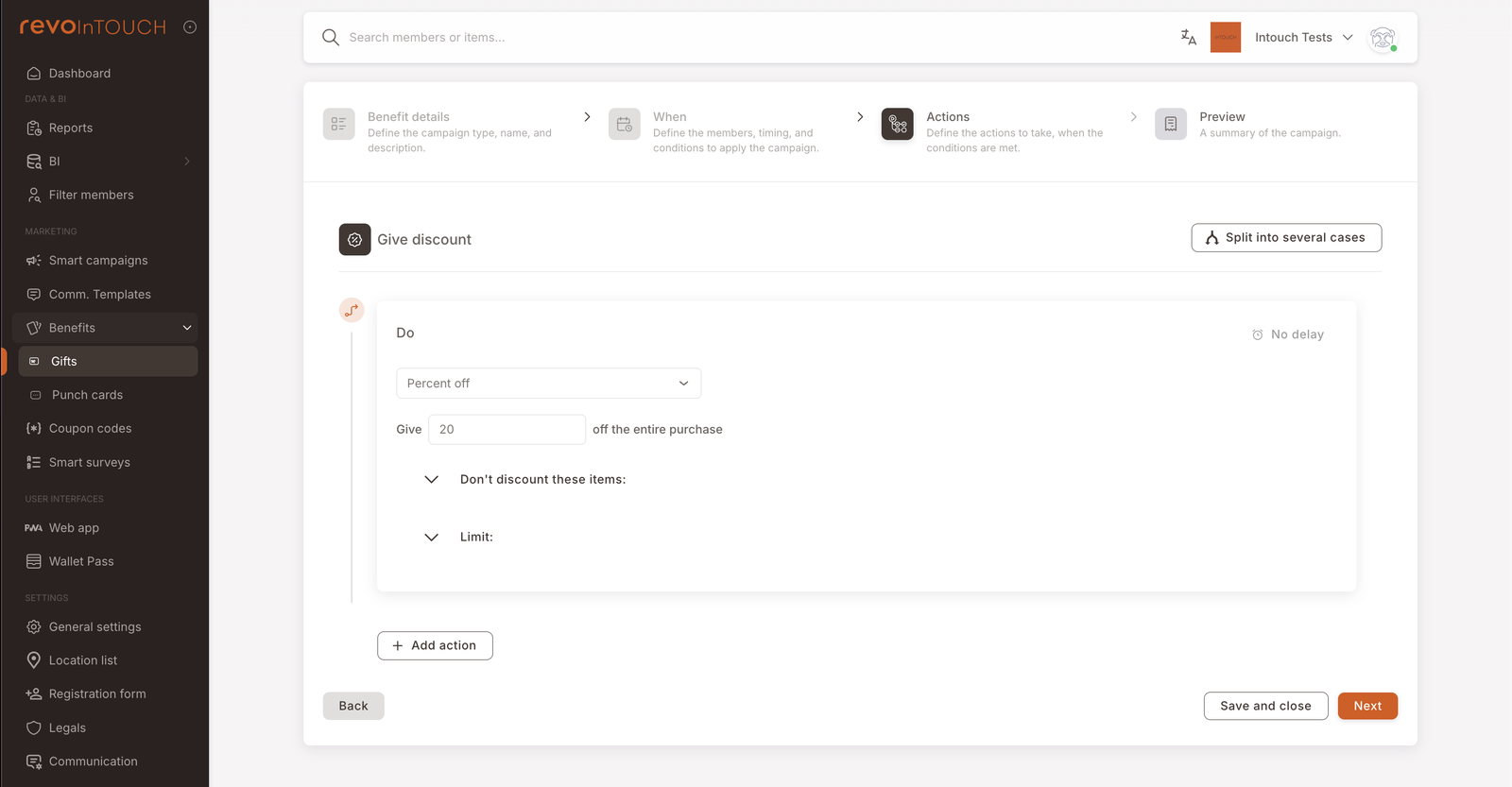
Step 3 configures the discount itself — what happens at the till when the member redeems the Gift. Same action set the Deal wizard uses, and structurally the same as Step 3 on a Smart Campaign:
- Pick the discount shape. Percent off, Free item, Amount off, Buy X get Y, etc. The picker mirrors the Deal action set.
- Configure the discount value. For Percent off, enter the percentage and pick the scope (off the entire purchase / off specific items). For Free item, pick the item or item group.
- Don't discount these items / Limit — collapsibles for excluding categories or capping the maximum discount value.
- Split into several cases — top-right toggle. Use it when the discount should vary by member segment or basket condition (rare for a Gift; more common on a Deal).
Step 4 — Preview
A read-only recap of the entire Gift — Benefit details, When (audience + expiry + redemption window + conditions count), Actions (cases + do-actions count). Save commits the Gift to the list view as Active; it's then pickable from any Send asset action on a Smart Campaign.
Variations
5 common patterns — VIP-only, branch-specific, free item, fixed amount, rolling expiry
VIP-only Gift. On Step 2, narrow the audience tile from All registered members to Specific members and add an attribute condition on tag (VIP). Members outside the audience can't redeem the Gift even if a Smart Campaign issues it to them.
Branch-specific redemption. On Step 2, add a Conditions row restricting redemption to specific branches. The Gift can be issued anywhere but only redeemed at the listed locations.
Free menu item instead of percent off. On Step 3, switch from Percent off to Free item and pick the item or item group from the picker.
Fixed amount off. On Step 3, switch to Amount off and enter the value (e.g. €10 off). Predictable cost per redemption — easier to budget than a percent off when basket sizes vary.
Buy X, get Y. On Step 3, switch to the Buy X, get Y shape — "for every X coffees in the basket, give Y free", "buy 2 burgers get 1 dessert free", and so on. The picker asks for the X item or item group with a quantity, and the Y item or item group (and quantity) that becomes free or discounted. Useful when the gift is shaped like a bundled promo rather than a flat discount on the existing basket.
Rolling expiry instead of fixed date. On Step 2, swap the calendar-date expiry for a rolling setup so each issued copy expires N days/weeks from when the member receives it (rather than every issued copy expiring on the same hard date).
Gotchas
4 things to watch for
- Gifts are referenced, not snapshotted. Editing an Active Gift changes what every Smart Campaign issuing it sends on its next firing. There's no version history surfaced; if you need to change the discount mid-campaign without affecting already-issued copies, build a new Gift and switch the campaign's Send asset to the new reference.
- The Gift's discount is the action; the Smart Campaign issuing it doesn't override. A Birthday Gift Rule that issues the Happy Birthday — 20% coupon always issues the 20% — there's no way to bump it to 25% from the Rule side. To vary the discount by audience, build per-audience Gifts and route via Split into cases on the Rule.
- Paused Gifts can't be issued. A Gift in Paused status causes the Send asset action on a Rule to be a no-op when the Rule fires. The Rule doesn't error; the issuance just silently doesn't happen. Pause carefully if live campaigns reference the Gift.
- The audience tile is a redemption gate, not an issuance gate. The audience tile on Step 2 of the Gift restricts who can redeem the Gift, not who can be issued one. The issuance audience is set on the Smart Campaign that issues the Gift, not here. If the two get out of sync — Smart Campaign issues to VIP, Gift restricts redemption to Gold — you can issue Gifts members can't redeem.