Filter members
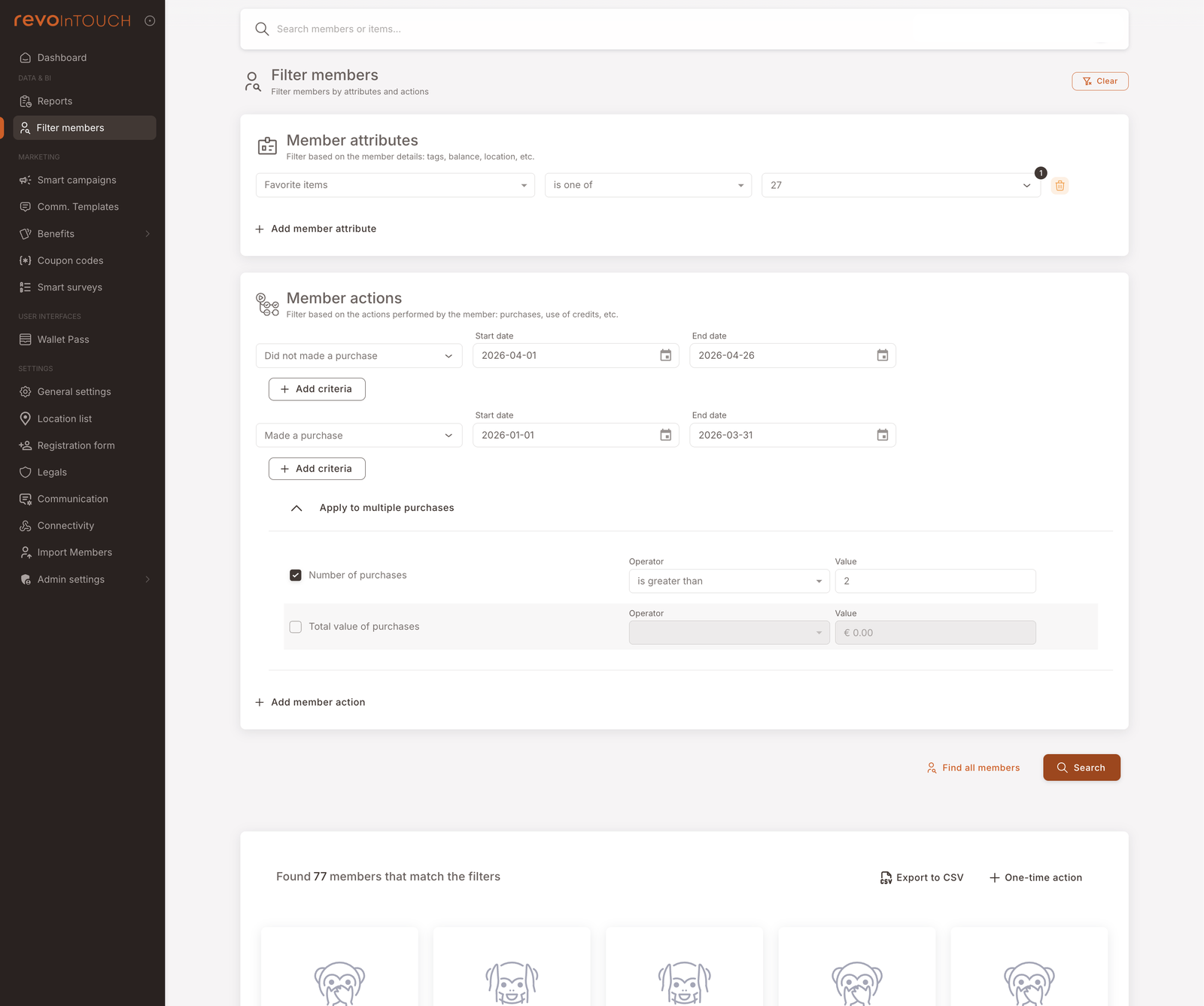
1. Open Filter members from the left nav.
2. Add Member attributes rows — favorite items, tags, balance, etc.
3. Add Member actions rows — Made a purchase / Did not made a purchase between dates, with optional Apply to multiple purchases logic (number / total value).
4. Click Search (or Find all members). Result count appears at the bottom: "Found N members that match the filters".
5. Either Export to CSV or click + One-time action to launch a Future Campaign with this audience pre-filled.
Filter members is the audience builder for any one-off operation that targets "every member matching these criteria" — whether that operation is an export to CSV for offline use, or a one-time push (SMS, email, asset grant) via Future Campaign.
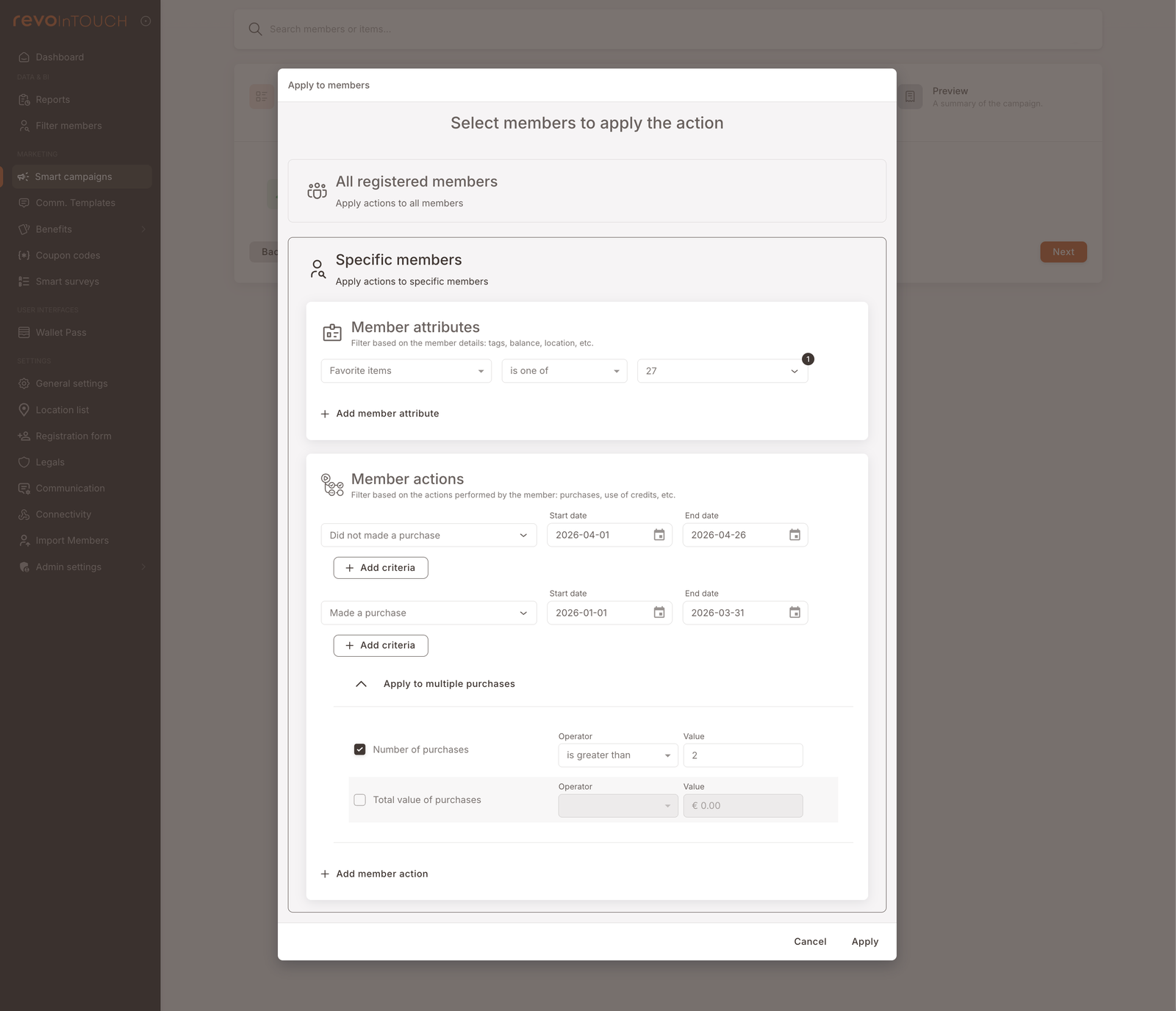
It's also the surface that backs the Apply to members picker inside Smart Campaigns — the same filter UI is reused there, just inside a modal.
Walkthrough
Open Filter members in the left nav. The page opens with two empty filter sections — Member attributes on top, Member actions below — and a results panel at the bottom.
Member attributes
Filters on what the member is — their stored attributes. Examples:
- Favorite items — member's most-purchased items. Operator is one of + a list of item IDs.
- Tags — chips applied to the member's profile.
- Balance — current credits / points balance.
- Birthday — exact date or month-and-day match.
- Preferred language — for language-segmented audiences.
- Joined date — when the member registered.
- Branch of registration — where the member signed up.
Click + Add member attribute to stack additional rows. Multiple rows are AND-ed together.
Member actions
Filters on what the member did (or didn't do) — purchase behaviour with date ranges. Examples:
- Made a purchase — between Start date and End date. Add criteria to layer extra conditions (e.g. on a specific branch, with a specific item, above a basket total).
- Did not made a purchase — the inverse. Same date range and criteria options.
Click + Add member action to stack additional rows. Multiple rows are AND-ed together.
Apply to multiple purchases
Beneath the action rows, a Apply to multiple purchases collapsible adds aggregate conditions across the date range:
- Number of purchases — operator (e.g. is greater than) + value (e.g. 2). "Members who made more than 2 purchases in the range".
- Total value of purchases — operator + currency value. "Members whose total spend in the range was over €100".
This is what enables segments like "members who placed more than 2 orders for at least €50 total in the last quarter" — three filter rows: Made a purchase between Q1 dates + Number of purchases > 2 + Total value of purchases >= 50.
Find / Search and the result list
Two execution buttons sit at the bottom right, and they do different things:
- Find all members — returns every registered member, ignoring the filters set above. Useful when you want a full member dump (or just to see the total count).
- Search — returns only the members who match the filters above. The primary CTA for any actual filtering work.
After execution, the result count appears at the bottom — "Found 77 members that match the filters" in the example — alongside avatars of the matching members.
What to do with the result
Two actions to the right of the result count:
- Export to CSV — downloads the matching members. Use for offline analysis, handing the list to a partner system, or feeding an external campaign tool.
- + One-time action — launches a Future Campaign with this audience pre-filled and pre-named (the campaign comes in named after the filter context, e.g. "Inactive Members (fav dish: Lasagna)"). The campaign wizard opens at Step 2 with the audience tile already showing To specific members and the fire time defaulted to Immediately; you click through to Step 3 to pick the action and Step 4 to save.
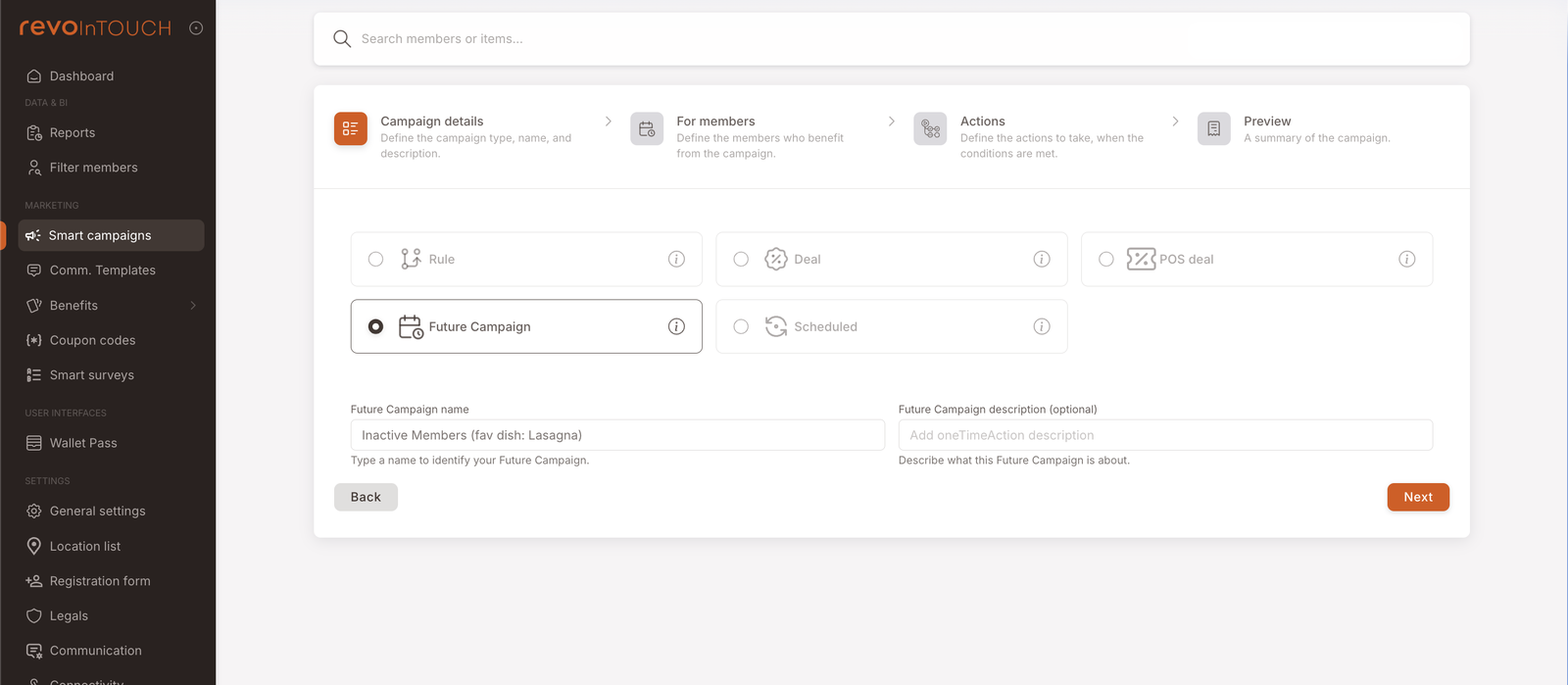
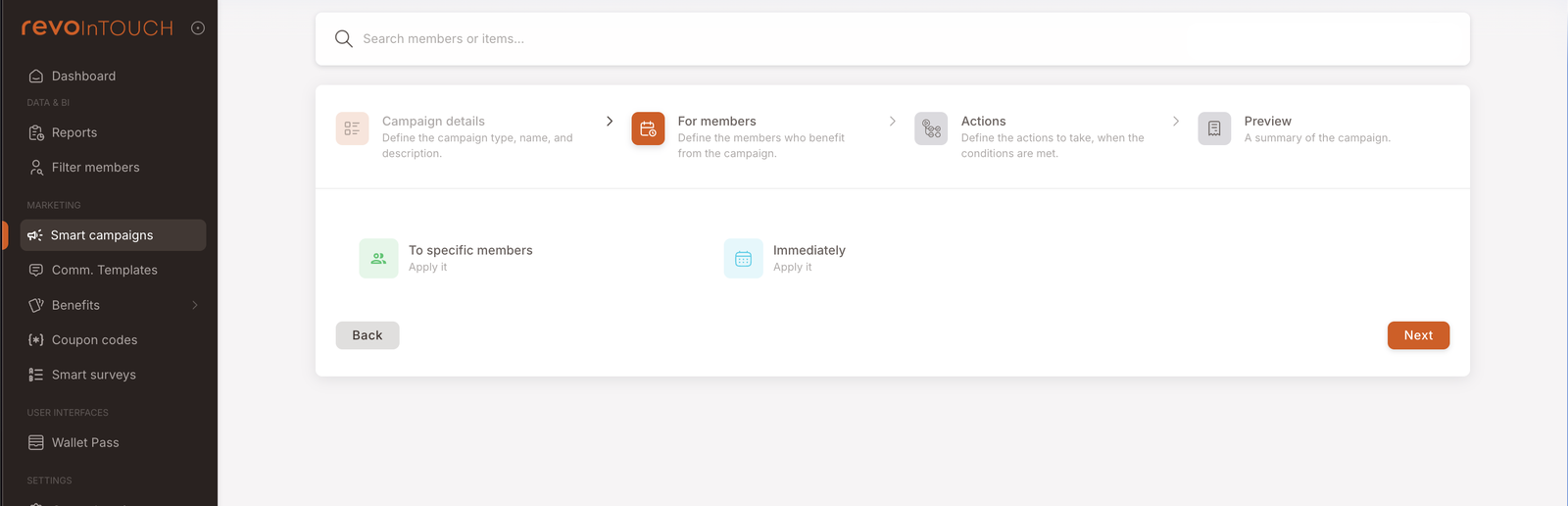
This is the alternate entry into Future Campaign that the Future Campaign overview describes — the one that's easier when you're starting from who you want to reach, rather than what you want to send.
The same filter UI inside a Smart Campaign
The filter UI you build in Filter members is the same UI that appears inside the Apply to members modal on a Smart Campaign's audience tile (Step 2 on Future Campaign and Scheduled, the audience picker on Rule). Same attribute rows, same action rows, same multi-purchase collapsible.
That means: a filter you've already built in Filter members and want to reuse on a recurring Smart Campaign — you don't import it, you rebuild it inside the campaign's audience tile. The filter shape is portable mentally, not technically.
Variations
5 common filter shapes — inactive, high-value, recently-active, item-affinity, one-step from churn
Inactive members. Did not made a purchase in the last 30 / 60 / 90 days. The base for re-engagement campaigns ("we miss you" emails, comeback discounts).
High-value members. Made a purchase in the last year + Apply to multiple purchases → Total value of purchases >= 500. The base for VIP-tier flagging and exclusive offers.
Recently-active members. Made a purchase in the last 14 days. Useful for surveys ("how was your visit?"), upsells, and post-visit thank-yous.
Item-affinity members. Member attributes → Favorite items is one of [item IDs]. The base for product-themed promos — "members who love the lasagna get a discount on the new pasta menu".
One step from churn. Made a purchase 60–90 days ago + Did not made a purchase in the last 30 days. Members who used to be active and just stopped — your re-engagement campaign's most valuable target.
Gotchas
4 things to watch for
- Filters are evaluated at click-time, not stored as a saved segment. The result count and member list reflect the moment you clicked Search. Re-clicking later may return a different set as members come and go from the criteria. Filter members is not a "saved segment" surface today.
- Export-to-CSV is a snapshot. The exported file is the result set at export time. A campaign launched ten minutes later from the same filter (via One-time action) re-evaluates the filter and may target a different set.
- The One-time action handoff is one-way. Audience flows from Filter members into the Future Campaign wizard, but if you change the audience inside the wizard later, the change doesn't propagate back to the original Filter members view. The two surfaces are linked at handoff time, not continuously.
- Multiple filter rows AND together, not OR. A filter with two Made a purchase rows in different date ranges only matches members who made a purchase in both ranges, not in either. Same applies across attribute rows and action rows. To get OR semantics, you typically need to run two filters and combine externally — there's no in-UI OR group today.