Get your emails into the inbox, not the spam folder
1. Write subject lines that don't look like spam. Short, specific, no ALL CAPS, no FREE!!!, no rows of emoji, no clickbait urgency.
2. Balance images with real text. Image-only emails get flagged as classic spam templates.
3. Send to recently engaged members, not your full base every time. Repeatedly emailing people who never open you trains mailbox providers to filter you.
4. Stick to a predictable cadence. Silence-then-blast damages your sender reputation more than steady, regular sends do.
5. Test send to yourself first. Catches broken merge tags, broken links, and mobile-layout breaks before thousands of members see them.
6. Complete the footer. Business name, physical address, and a why you're receiving this line keep you on the right side of the law AND reduce Mark as spam clicks.
7. Welcome emails should ask members to add you to their contacts. A member who adds your address to their contacts inbox-routes you for life.
Inbox placement is a reputation game. The rules below protect your open rates so the members who joined your loyalty programme actually see what you send.
Whether an email lands in the inbox or the spam folder is shaped by three things: who you are as a sender, what your email contains, and how members react to your sends over time. None of it depends on clever tricks. It depends on looking, sounding, and behaving like a legitimate business members chose to hear from.
At a glance — anatomy of a deliverable email

Each numbered element below is unpacked in the sections that follow.
Your sender identity
Two settings shape what members see in the From line of their inbox. Both live under Settings → Communication → Email settings, and you'll typically set them once when your loyalty club launches.
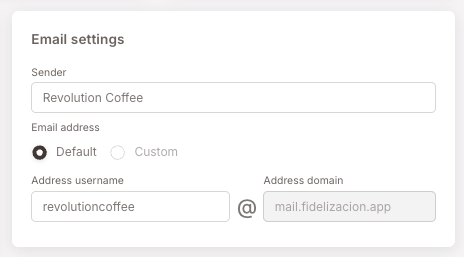
- Sender — the display name members see. Use your loyalty club's brand exactly as members recognise it (the brand on your storefront, not an internal team name like Loyalty Marketing). This is the first thing a member sees when scanning their inbox; if it doesn't look like a brand they recognise, they won't open it.
- Address username — the local part of the email address (everything before the @). Pick something on-brand and human (
hello,team, or a short brand handle). Avoidnoreply,info, or anything that signals "this is an automated blast from a system you can't reply to" — those addresses tend to get filtered, and they discourage replies, which are one of the strongest positive engagement signals you can earn.
The domain side of the address is provided and maintained for you. Domain authentication, deliverability reputation, and the technical plumbing behind the @ are handled at the platform level — your job is to choose a Sender name and Address username that members will recognise at a glance.
A well-chosen sender combination — your brand name in the From line paired with a clean local-part on the provided mail.fidelizacion.app domain — does more for your open rates than almost anything else in this guide.
The email body
What goes inside the email matters almost as much as who sent it.
Subject line and preheader
The subject line is the second thing members see, after your sender name. Keep it short, specific, and honest:
- No ALL CAPS, no
FREE!!!, no rows of$$$, no rows of emoji - No clickbait or false urgency (Last chance! when nothing is ending)
- Tell members what's inside, not why they should care — let the email itself do the selling
- Keep it under about 50 characters; most phones cut off longer subjects
The preheader is the grey line of preview text most inboxes show under the subject. It's a second subject line, and most senders waste it on View this email in your browser. Use it to extend the subject — a short complement, not a repeat.
Images, text, and layout
- Balance images with text. Mail providers — Gmail especially — are suspicious of emails that are mostly one big image, because that's the classic shape of a spam template. Use real text for your headline and body copy; reserve images for what they're actually good at — photos, branded artwork, illustrations.
- Always set alt text on images. Many email clients block images by default, and members on slow connections see alt text first. It's also a small but real deliverability signal.
- Keep the email focused on one thing. One primary call-to-action button per email. A secondary text link is fine if it's truly secondary. A wall of competing buttons confuses members and dilutes click-through.
- Design for mobile first. Most members open email on a phone. Use the Mobile preview in the template editor before sending.
- Keep the total weight reasonable. Heavy emails (large embedded images, dozens of blocks) get clipped by Gmail at around 100KB of HTML. When an email is clipped, the unsubscribe link at the bottom often gets cut off — a deliverability disaster.
Test before you send
Before scheduling a tenant-wide send, send a test to yourself — and open it on your phone, your desktop email client, and in Gmail. Look for:
- Broken merge tags (a
[@member.firstName]that didn't resolve to a real name) - Broken links (CTA goes nowhere, or to the wrong page)
- Broken images (alt text showing where a photo should be)
- Layout breaks on mobile
- Subject and preheader cut off too early
A five-minute test catches problems that would otherwise reach thousands of members.
The footer
Every email you send needs a footer. This isn't a style preference — it's a legal requirement across the EU, Spain, the UK, and the US, and missing pieces of it actively hurt deliverability. Mailbox providers downgrade senders whose emails lack standard footer elements.
A complete footer includes:
- Legal business name — the entity actually sending the email (the loyalty club's parent company, restaurant group, or brand owner — the name that appears on receipts).
- Physical postal address — a real street address where the business operates. A PO box is acceptable; "Spain" is not. This is required by GDPR, by Spain's LSSI, and by US CAN-SPAM, and the requirement applies to marketing email regardless of where the recipient lives.
- A working unsubscribe link — every marketing email must offer a one-click way out. Hiding it, breaking it, or requiring a member to log in to unsubscribe is illegal in most jurisdictions and the fastest way to get flagged. The platform takes care of this for you: the unsubscribe link is configured from Settings → Communication and is appended automatically to every email you send. You don't need to add one in the email builder. If you do prefer to place the unsubscribe link yourself — for example to integrate it visually with the rest of your footer — add it manually in the editor: open Select magic links, expand Unsubscribe link, copy it, and attach it to your footer wording. The platform detects manually-added unsubscribe links and skips its automatic insertion, so members never see two of them.
- A short "why are you receiving this" line — something like You're receiving this because you joined our loyalty programme. Members who don't remember signing up are more likely to mark email as spam than to unsubscribe — and spam complaints are far more damaging to your sender reputation than unsubscribes.
Optional but useful: a contact email or phone for member questions, your social links, a "find us" link to your branch locations.
Build the footer once into a reusable section and reuse it across every template. Consistency here pays off — members come to recognise the shape of your emails, and you eliminate the recurring risk of forgetting a required element.
Audience and cadence
The third lever — and the one most senders underestimate — is who you send to and how often.
Who you send to
Consent is handled for you. Even if a campaign's target audience includes members who never agreed to receive marketing email, the platform won't deliver to them — that compliance layer runs automatically, so you don't need to filter the list yourself.
What's still on you is engagement. Sending repeatedly to consenting-but-disengaged members teaches mailbox providers that your sends aren't wanted, and that judgment then applies to every email you send afterwards — including the ones you'll send to your most loyal members.
- Segment by recent engagement. Build campaigns around members who've visited, opened, or interacted recently. A send to the 5,000 most engaged members will almost always outperform the same email blasted to 50,000, half of whom haven't visited in a year.
- Trim stale segments before big sends. Members who haven't opened any of your emails in six or twelve months generate bounces and Mark as spam clicks without bringing in revenue. Either leave them out, or build a separate "we miss you" re-engagement track for them with a softer subject line.
- Never import a purchased or scraped list. Lists you didn't grow yourself are a fast path to a poisoned sender reputation — and in most jurisdictions, a legal problem on top.
How often you send
- Frequency matters. One well-timed email a month beats four ignored ones. If members start ignoring you, mailbox providers notice — low open rates over time tell Gmail and Outlook to start putting you in Promotions, then in spam.
- Warm up before big sends. The first time you send to a large audience (tens of thousands), don't send all at once. Start with your most engaged members — recent visits, recent opens — and expand outward over a few sends. A clean burst of opens and clicks early teaches mailbox providers that your sends are wanted.
Small things that move the needle
A handful of practices most senders never think about, all of which compound over time:
- Welcome emails: ask members to add you to their contacts. A member who adds your sender address to their contact list has all your future emails routed straight to their Primary inbox — for life. A short line near the top of your welcome email does it: Make sure these emails reach you — tap our name above and choose "Add to Contacts."
- Encourage replies, occasionally. A reply from a real human is one of the strongest positive engagement signals a mailbox provider can see. Once in a while, ask a question that invites a one-line response (How was your visit?, What new flavour should we add?). It's good for your loyalty programme and excellent for your sender reputation.
- Use full URLs in links, not URL shorteners. Branded URL shorteners like bit.ly and tinyurl are heavily associated with spam and phishing. Link to your real destination URL — it's safer for members, and it doesn't add a spam score against you.
- Don't only send on peak commercial days. Black Friday and Mother's Day inboxes are overflowing — your email lands at the bottom of a giant pile and gets opened by far fewer members. A send a day earlier or a day later often outperforms the on-the-day blast.
- Don't make the email all-link or all-button. Mostly-links emails look like phishing. Mix in real text.
Why this matters for you
Deliverability is reputation, and reputation builds slowly and breaks fast. A few bad sends — a stale list, an aggressive subject line, a broken unsubscribe — can drop your open rates by half and take weeks to recover. The rules above aren't about pleasing inspectors. They're about making sure the members who joined your loyalty programme actually see what you send them.
Spam triggers checklist — quick scan before you send
Before scheduling a send, scan the draft for any of these. None alone is fatal — but two or three together start to look like a textbook spam template.
- Subject line in ALL CAPS, full of punctuation (
!!!,???), or starting with money symbols - Subject phrases like Free, Act now, Limited time, Guarantee, Click here, No obligation
- Body that's one large image with little or no real text
- Missing alt text on images
- More than one big call-to-action button competing for attention
- Links going through a URL shortener (bit.ly, tinyurl, etc.)
noreply@orinfo@style address username- No unsubscribe link visible above the footer fold
- No physical postal address in the footer
- Test send shows the email clipped at the bottom in Gmail
- Subject line over ~50 characters (cut off on most phones)
- Preheader empty or saying View in browser
If your open rate drops — diagnostics and recovery
If a campaign opens at noticeably lower rates than your usual baseline, work through this in order:
-
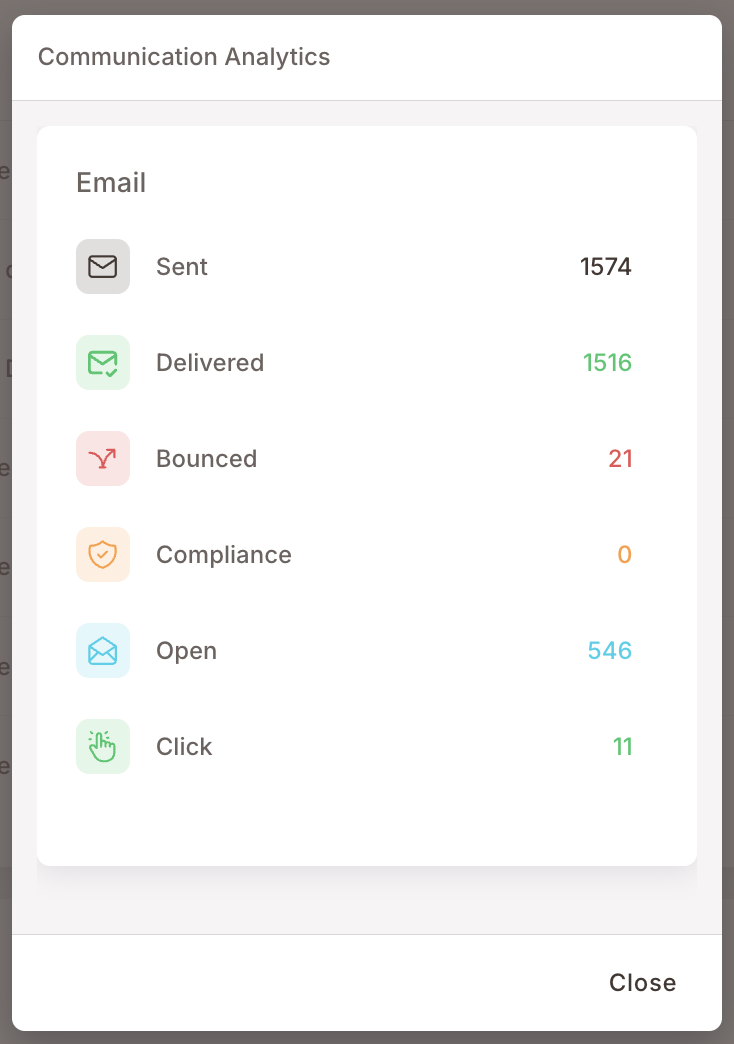
Check your bounce rate first. A spike in bounces means you're sending to bad addresses, which damages reputation. Pause and clean the list.
-
Check whether you sent to inactive members. Re-send the same email to only members who opened your last three emails and compare the rate — that tells you whether the problem is the list or the email itself.
-
Check the subject line. Did it contain anything from the Spam triggers checklist? Run a small test with a cleaner subject to a sub-segment.
-
Check the unsubscribe link. If members can't easily opt out, they hit Mark as spam instead — far worse for your reputation than an unsubscribe.
-
Pause your cadence. Skip a planned send or two. Give your sender reputation a chance to recover before the next attempt.
-
Ask for help. If open rates drop sharply and don't recover after the steps above, surface it at your next support touchpoint — there may be a platform-level diagnostic worth running on your account.
Recovery usually takes a few weeks of clean, well-targeted sends. There is no fast undo for a damaged sender reputation, which is why the rules at the top of this page exist.