Author a notification template
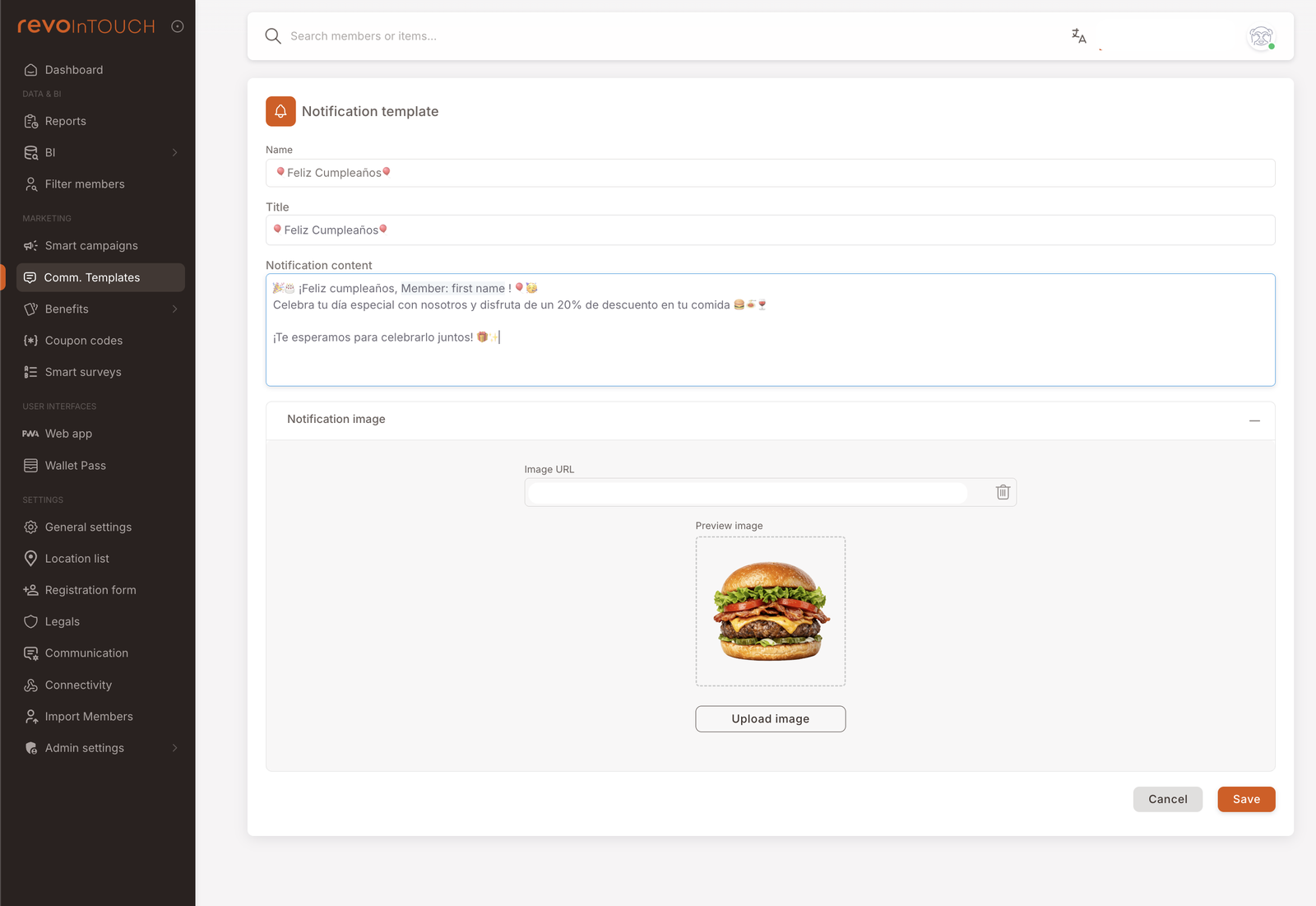
1. Open Comm. Templates → Add new template and pick Notification template.
2. Give it a Name (internal).
3. Write a Title (the headline shown in the notification banner).
4. Write the Notification content — the body. Use @ to insert dynamic fields and add emojis freely.
5. Optionally add a Notification image — paste an image URL or upload a file.
6. Save.
The template is now Active and pickable from any Send notification action.
A notification template is a saved, named push notification — a short, attention-grabbing message delivered to the member's app or wallet pass. Structurally it sits between SMS and email: more visual than SMS (it carries a title and an image) but lighter than email (no canvas, no content blocks).
The one difference from SMS authoring you'll feel immediately is the image. A notification can carry a single image alongside its text — useful for product launches, branded promo art, or a photo of the gift the member just earned. Beyond the image, the dynamic-field and emoji support is the same as SMS.
Walkthrough
Open Comm. Templates in the left nav, click Add new template, and pick Notification template as the kind.
Name
Internal label only. Used in the list view and in the action picker on a Smart Campaign. Members never see it. (Same convention as SMS and Email templates.)
Title
The headline that shows in the notification banner — the bold first line members see when the notification arrives. Keep it short (notifications truncate fast on mobile) and front-load the important word.
Notification content
The body of the notification. Free-form text with two things you can drop in:
- Dynamic fields — type
@to insert tokens like Member: first name or Business: name. Same syntax as SMS — the token resolves per-recipient at send time. - Emojis — use them freely. Notifications visually benefit from a relevant emoji in a way SMS sometimes does too. The example screenshot uses 🎂 and 🎉 alongside a birthday greeting.
Both behave exactly the way they do in SMS templates — the syntax is identical.
Notification image (optional)
The differentiating feature vs SMS. The Notification image section accepts an image two ways:
- Image URL — paste an externally-hosted image URL. The image must be reachable from the member's device at notification time, so prefer URLs on a stable host (CDN, branded asset bucket).
- Upload image — upload a file directly. The platform hosts it; the URL is generated for you.
A Preview image thumbnail shows what the recipient will see. Skip the section entirely for text-only notifications.
Save
Click Save in the bottom right. The template lands in the list view as Active and is pickable from any Send notification action on a Rule or Future Campaign.
When to reach for a notification (vs. SMS or email)
- Notification — fastest, cheapest channel for an in-app or wallet-pass nudge. No per-message billing the way SMS bills, but only reaches members who have the relevant surface installed and notification permission granted. Best for "your card just got punched", "Happy Hour starts in 30 minutes", "your gift expires tomorrow" — and for visual-first messages where the image is doing the work.
- SMS — universal reach (any member with a phone number on file), per-segment billing, plain text. Best for time-critical messages and for members who don't engage with the app.
- Email — richest format, paid service, asynchronous. Best for announcements, newsletters, longer-form content.
Variations
4 common patterns — image-led promos, dynamic-field personalisation, multi-language, magic links
Image-led product promos. A new menu item, a seasonal launch, a limited drop. The image carries most of the message; the title and body just frame it ("New on the menu" / "This week only").
Dynamic-field personalisation. Use @member: first name in the title for a small but meaningful personal touch — "Hi María, your gift is ready!" often outperforms an impersonal version.
Per-language templates. Build one template per language (Birthday push — ES, Birthday push — EN) and route members via Split into several cases on the campaign, conditioned on Preferred language. Same pattern as SMS and Email templates.
Image-driven product launches. A notification with a striking image and a one-line title outperforms a text-only push for product reveals — the visual carries most of the message. Build the image to match the wallet-pass aesthetic so members feel a coherent brand.
Gotchas
4 things to watch for
- Reach is conditional on member opt-in. Unlike SMS (any phone number) or email (any email address), notifications only reach members who have the receiving surface installed and have granted notification permission. The actually-delivered audience can be substantially smaller than the campaign's targeted audience — the Push consent flag on the Member profile is the gate.
- Dynamic fields render empty if the member's data is missing. Same caveat as SMS and email — write copy that reads naturally without the field, or filter the campaign audience to members with it on file.
- Image URLs must stay live. If you paste an external URL and the host later moves or removes the image, members opening the notification later will see a broken image. Prefer uploaded files (the platform hosts them) or stable CDN URLs you control.
- Emojis render differently across devices. A notification sent with the latest Unicode emojis may render as
□boxes on older devices. Stick to widely-supported emojis for member-facing pushes.