Connectivity
The Connectivity page holds the tenant's API key — the credential the POS uses to authenticate when it talks to the platform — plus a small set of POS-side settings. Read-only for everyday purposes; don't change anything here unless your integrator explicitly asks. The one setting worth understanding is Only allow defined locations (branch), because it decides whether an unlisted branch can transact at all.
What's on the page
Two cards:
- POS settings (left) — how the platform treats what the POS sends: Save purchase option (typically All purchases), Allow multiple purchase identifiers, and Only allow defined locations (branch). All configured for you, not day-to-day settings.
- API key settings (right) — the tenant's API key. This is what your POS uses in its
x-api-keyheader to authenticate with the platform.
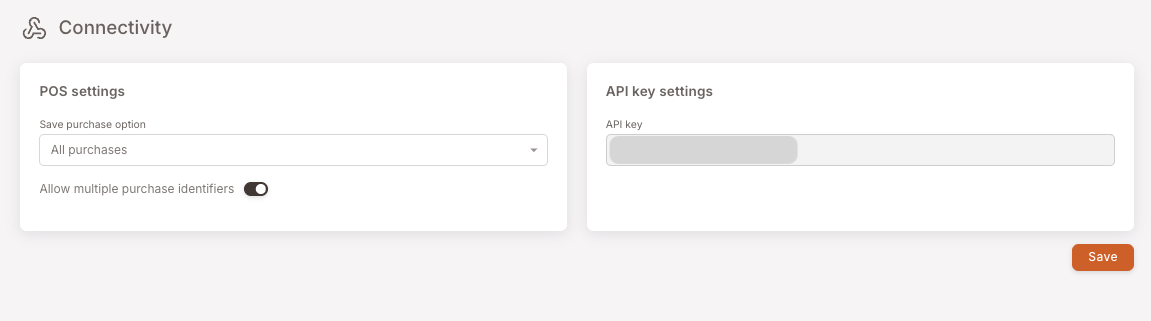
Only allow defined locations (branch)
This setting is the link between your Location list and what the POS is allowed to do.
When it's on, the platform accepts transactions only from branches that exist in your Location list and are set to Active. Anything arriving with an unknown or paused Branch ID is refused — nothing is saved, and the POS receives an error instead of a confirmation. When it's off, transactions from any Branch ID are accepted, named or not.
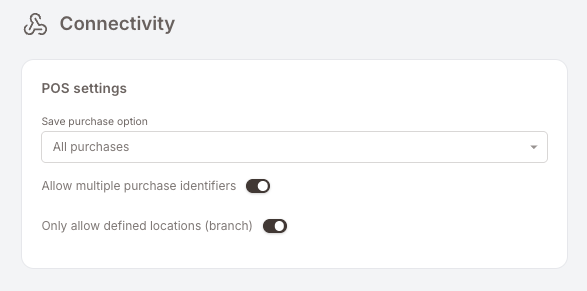
The toggle is switched on for your account rather than by you — it's a platform-level control, so treat it as read-only. What it changes for you is the maintenance habit, not the button:
- Add a branch to the Location list before it opens, using the exact Branch ID the POS will send.
- Pause a branch when it closes, and reactivate it if it reopens.
- Keep the list honest — the number of Active rows is also the number of locations your subscription is counted on.
The full picture, including what to check when one location "stops working", is on the Location list page.
When to touch this
Almost never. The situations where this page matters:
- Your integrator asks for the API key to debug a POS-to-platform connection — copy it from the field and share it with them through a secure channel.
- The integrator asks you to flip a POS setting (e.g. Save purchase option between All purchases and a more selective mode) as part of a configuration change — do exactly what they ask, no more.
- A single location stops earning or redeeming. That's usually not a Connectivity problem — go to the Location list and check the branch is listed and Active.
If anything else looks wrong here, it's a question for your integrator, not a self-service fix.
Why this page is so short
Most loyalty tools bury connectivity behind a "developer settings" hellscape. The platform deliberately keeps this surface small: one credential, a handful of POS settings, nothing else for the operator to tune. If your POS-side integration is misbehaving, the cause is almost always at the POS, in the Location list, or in the Smart Campaigns configuration — not here.