Scheduled: Birthday gift
Send a birthday gift to every member on their birthday
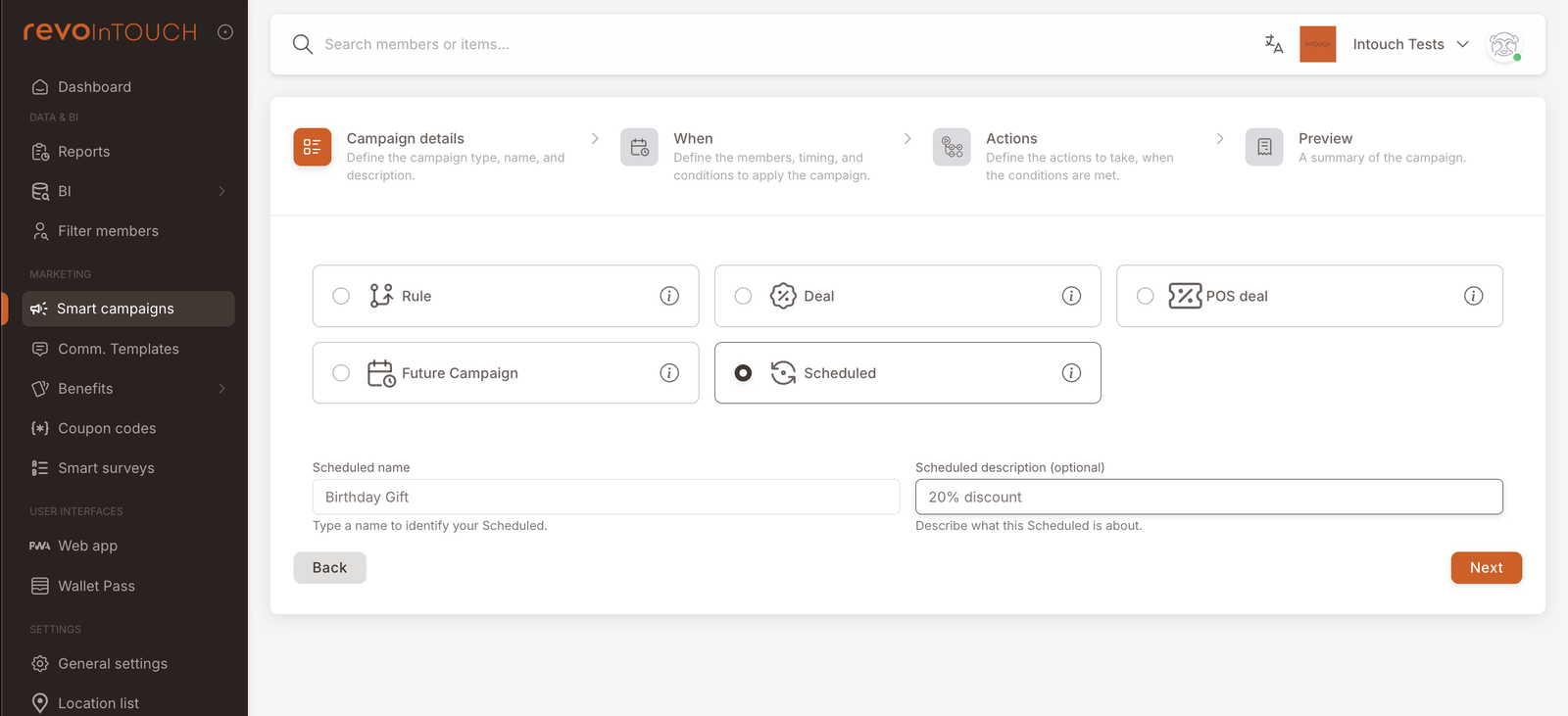
Step 1 — Pick Scheduled, name it Birthday Gift.
Step 2 — Two tiles:
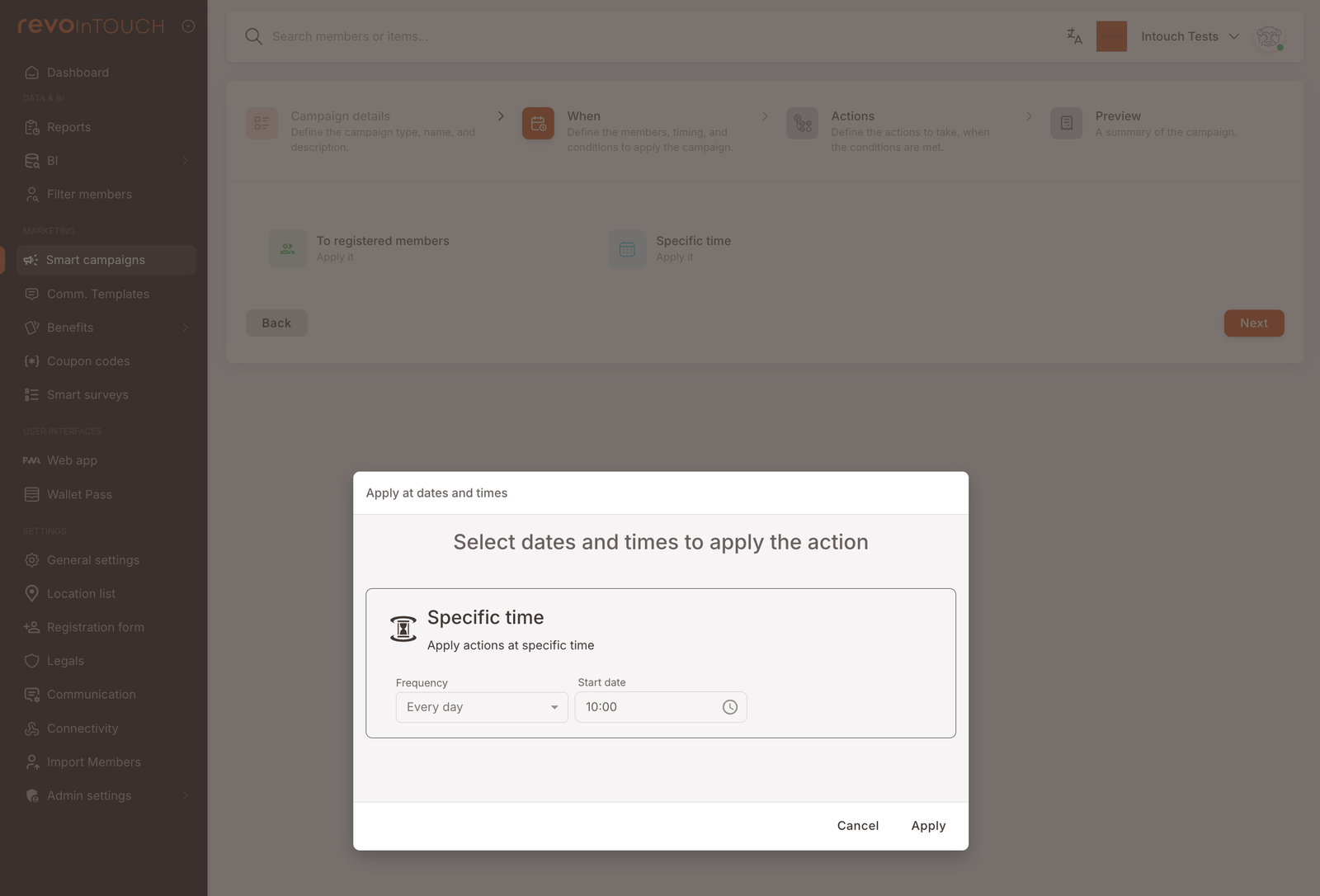
- Schedule: Every day at 10:00.
- Audience: Specific members with Birthday Day & Month equals Execution day and month.
Step 3 — Stack two actions:
- Send asset → birthday Gift.
- Send SMS → birthday template.
Step 4 — Save.
Runs daily; gifts and texts go out to whoever's birthday is today. Requires the Gift asset and the SMS template to exist already.
This playbook sets up a Scheduled campaign that fires once a day, every day, sends a pre-configured Gift to the members whose birthday is today, and follows up with an SMS so they know the gift has landed in their wallet.
What you'll build
Every day at a time you pick (10am in this walkthrough), the platform will:
- Walk through the population of registered members.
- Keep only the members whose Birthday Day & Month equals today's day and month.
- For each matching member, send the pre-configured birthday Gift asset and a birthday SMS, both with no delay between them.
The campaign runs indefinitely on this daily cadence until you pause or delete it.
When to use this
Use this Scheduled campaign when you want an automatic, recurring, member-facing touch on a date the member carries with them — birthday, join anniversary, "a year since last visit." The pattern is always the same shape: a daily schedule plus an audience filter that narrows the run to whoever matches today's date.
Before you start
3 prerequisites — Gift asset, SMS template, and birthdays on file
Three things to have lined up before you open the wizard:
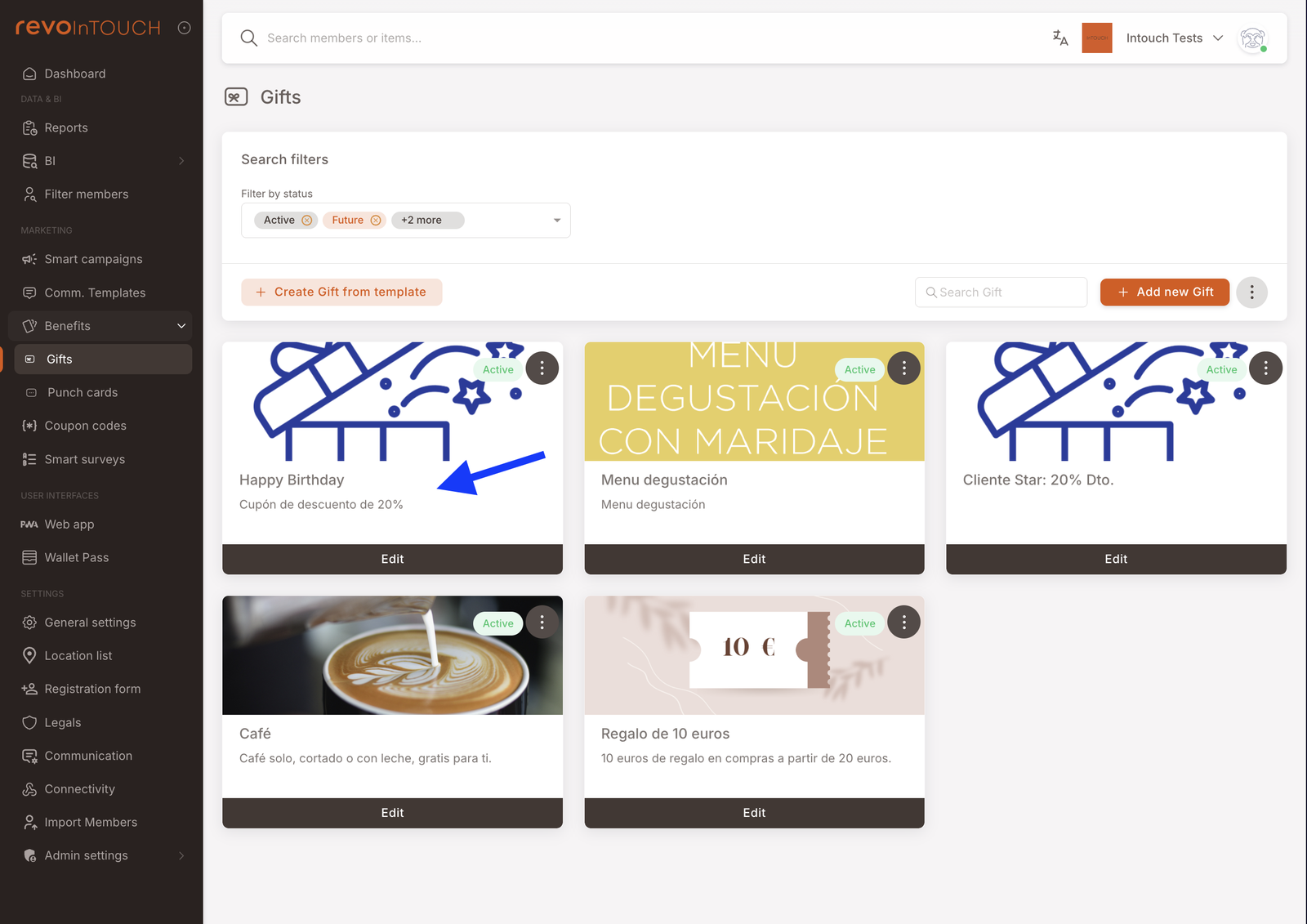
- The Gift asset you want to send already exists. Gifts are configured separately under Benefits → Gifts; the Scheduled campaign only references a Gift, it doesn't create one. If you haven't built the birthday Gift yet, do that first.
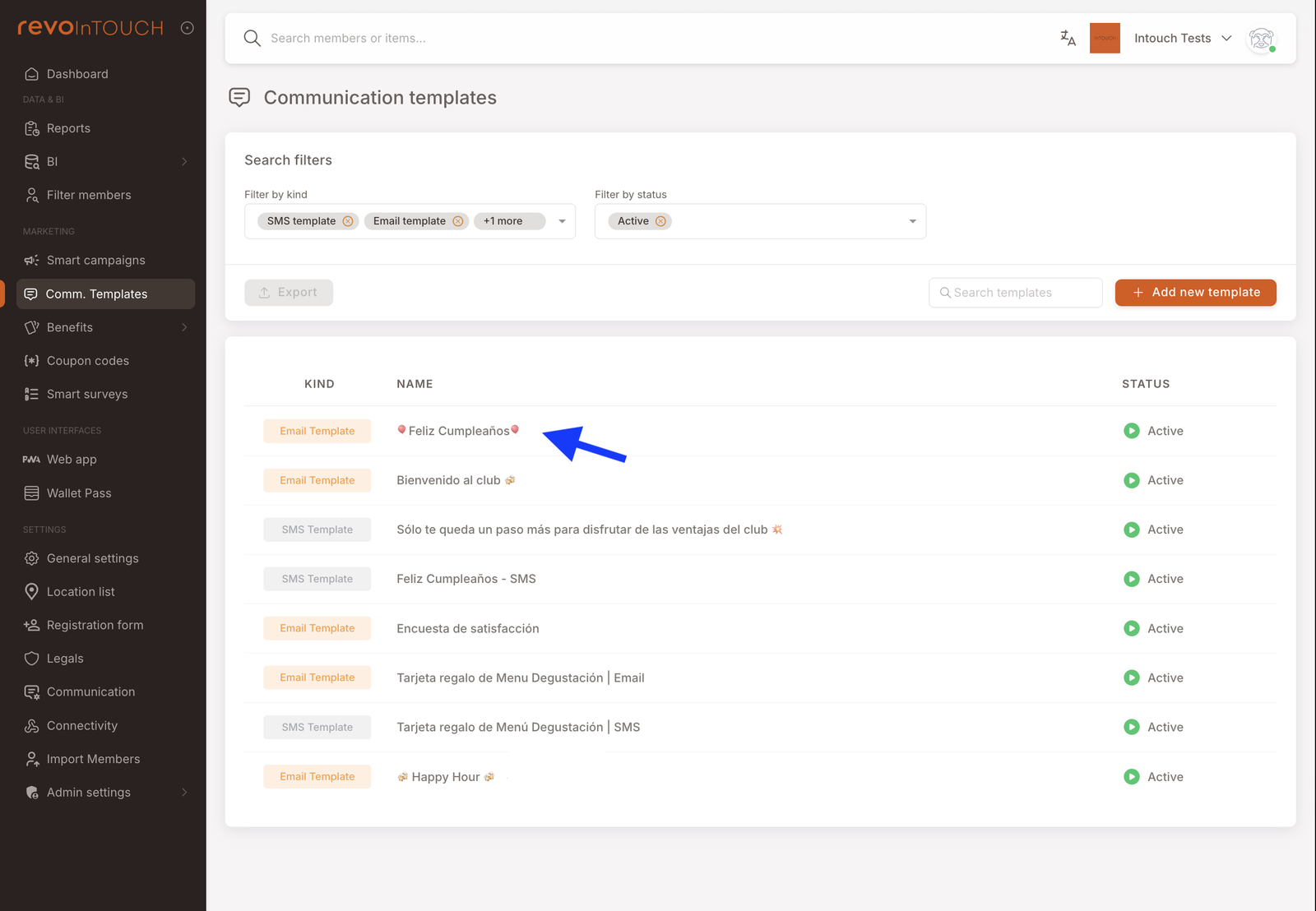
- The SMS template you want to send already exists. Communication templates live under Comm. Templates; the campaign picks a saved template, it doesn't let you author one inline. Draft the birthday SMS there first — dynamic fields (member first name, business name), a line referencing the gift, and a close — then come back here.
- Member records have a birthday populated. The audience filter silently skips members with no birthday on file.
Walkthrough
Smart Campaigns live under Marketing → Smart campaigns in the left nav. Click Create campaign to open the four-step wizard.
Step 1 — Campaign details
Pick Scheduled as the campaign kind. Give it a name that makes the occasion obvious in the list view — Birthday Gift is fine. Use the description field to park the why (a one-liner like "Daily birthday gift + SMS, rolled out April 2026"); a recurring campaign's purpose isn't visible in its audience or actions, so the description is the only place future-you can find it.
Name the campaign after the occasion, not the asset. If you rename the Gift under Benefits six months from now, you don't want your campaign list to read "Send gift-abc123-old".
Step 2 — When (schedule + audience)
This is the step that distinguishes a Scheduled campaign from every other kind — two tiles side by side, each doing half the work. Neither one is a trigger; together they answer "at each daily run, which members should this apply to?"
Specific time — opens the Apply at dates and times picker.
- Frequency: Every day. The dropdown also offers weekly and longer cadences, but a birthday campaign has to check the calendar every day — see Scheduled overview → Choosing the cadence.
- At: 10:00 (or whichever morning time fits your members). This sets the time the daily run fires, in the business's timezone.
- Leave Has end date switched off — a birthday campaign should keep running indefinitely.
To registered members — opens the Apply to members picker.
- Choose Specific members.
- Under Member attributes, build one condition: Birthday Day & Month equals Execution day and month. This is the field that narrows the daily run to members whose birthday is today; Execution day and month is a dynamic value that resolves to "today" on each run, not a frozen date. (Member actions sits just below it, if you ever want to combine the birthday with a behaviour filter.)
Step 3 — Actions
Two actions, stacked — "Do … And do …" — not Split into several cases. The member needs both: the Gift in their wallet, and a message telling them it's there. A silent gift doesn't get redeemed.
Action 1 — Send asset
- In the first action block, select Send asset from the action dropdown.
- In the Asset picker, select your pre-configured birthday Gift.
- Leave Quantity at 1.
Action 2 — Send SMS
- Click + Add action at the bottom of Action 1 to open a second action block.
- Select Send SMS as the action.
- In the template picker, select the birthday SMS template you prepared under Comm. Templates.
- Review the preview of the template body below the picker — the Charged messages and Total characters lines show how the SMS will bill. Dynamic fields like Member: first name expand at send-time, so members with long names can push a one-segment template over 160 characters and into two.
Leave both action blocks on No delay. The Gift is issued first, then the SMS fires — both within seconds of the daily tick.
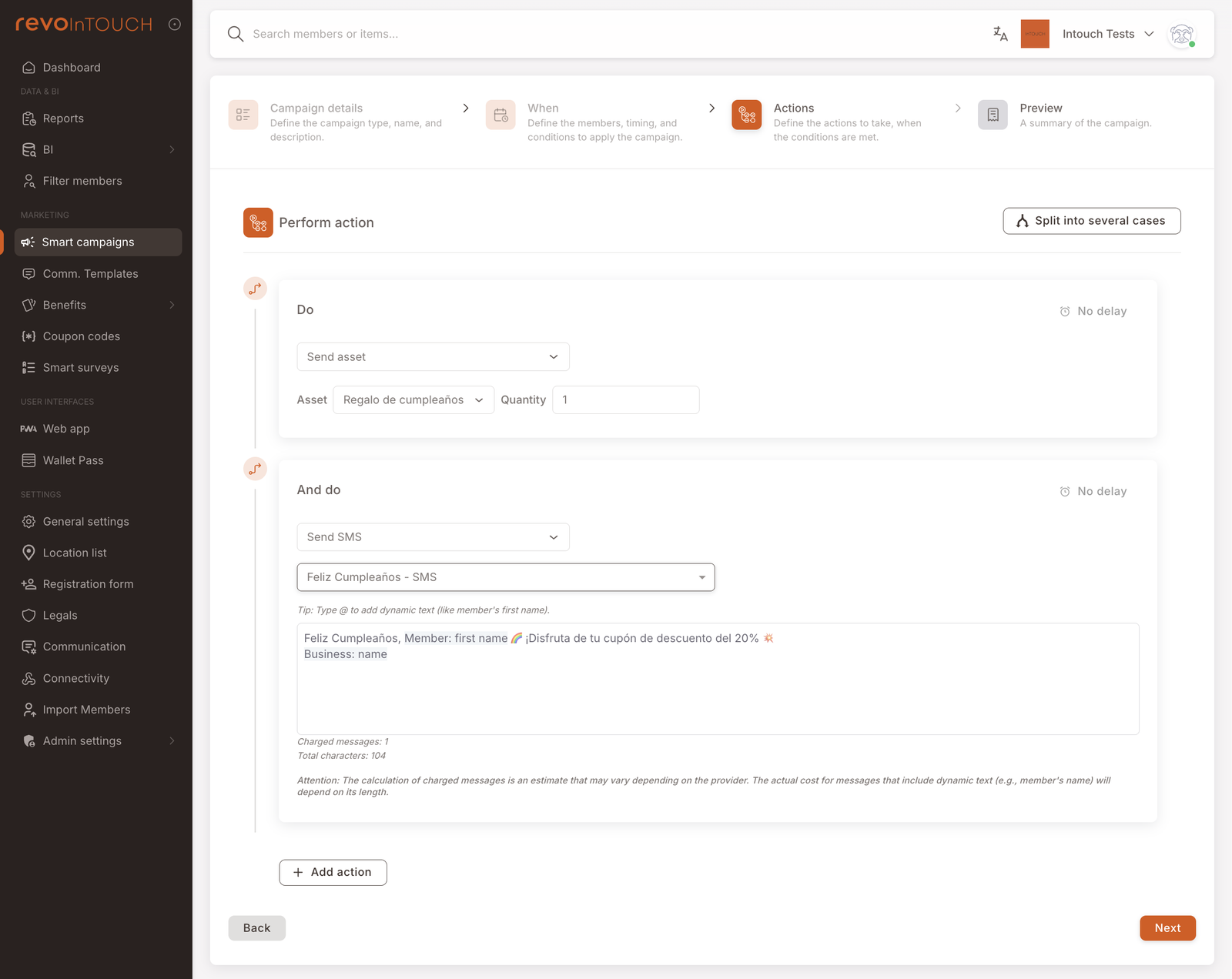
The Gift and the SMS template that the actions point at are fixed at save-time by reference, not snapshot. If you later edit either one — change the discount amount on the Gift, reword the SMS — the campaign will send the updated version on the next daily tick.
Step 4 — Preview
Read-only recap of everything above. Check three things in particular:
- Kind shows Scheduled — not Future Campaign. It's easy to misclick on step 1.
- When shows the correct audience summary and frequency.
- Actions shows Cases: 1 and Do actions: 2 — one implicit case with two stacked actions. If Do actions shows 1, one of your step-3 actions didn't save.
Click Save to commit. If you set the state on step 1 to Draft, the campaign is saved but won't fire on the next tick — flip it to Active from the list view to start sending.
Variations
4 common tweaks — VIP tier, anniversary, email channel, month-long validity
Different gift for VIP members, with tier-specific messaging. On step 3, use Split into cases rather than stacked actions. Put a condition on tag = VIP in the first case and point Send asset at the VIP Gift (with a VIP-flavoured SMS template); leave the default case pointing at the standard Gift and SMS. Members get exactly one branch — the first matching case wins.
Registration anniversary instead of birthday. Same shape, different attribute. Replace the audience condition with Registration Anniversary equals Execution day and month to thank members on the day they joined. If you'd rather run the whole month, use Registration Anniversary Month instead. Everything else — daily schedule, stacked Send asset + Send SMS — stays the same.
Email in place of (or alongside) SMS. Swap or stack a Send email action for the SMS if your members read email more reliably than they read texts. The email template, like the SMS template, has to be prepared in Comm. Templates first.
Birthday-month rather than birthday-day. If you want the gift available for the whole birthday month rather than just the day, the Gift itself carries the validity window — give it a 30-day expiry starting on issue. The campaign still runs daily and sends on the exact day; members just have a month to redeem.
Gotchas
3 things that commonly trip people up
- Paused days are lost. If the campaign is paused through a scheduled tick, that day's members don't get their gift — and there's no backfill when you resume. Avoid pauses on birthday campaigns if you can.
- Members who join today aren't retroactively caught. A member who registers at 2pm today with their birthday set to today won't get a gift — the campaign has already ticked at 10am. If their birthday is tomorrow, they're fine.
- Members with no birthday on file are invisible. The audience condition filters by equality, so a null birthday is not a match. If birthday coverage in your member base is patchy, prioritise collecting birthdays at registration before rolling this out broadly.