Deal: Happy hour
20% off drinks between 18:00 and 20:00 — a Happy Hour playbook
Step 1 — Pick Deal, name it Happy Hour.
Step 2 — Three tiles:
- Audience: To registered members.
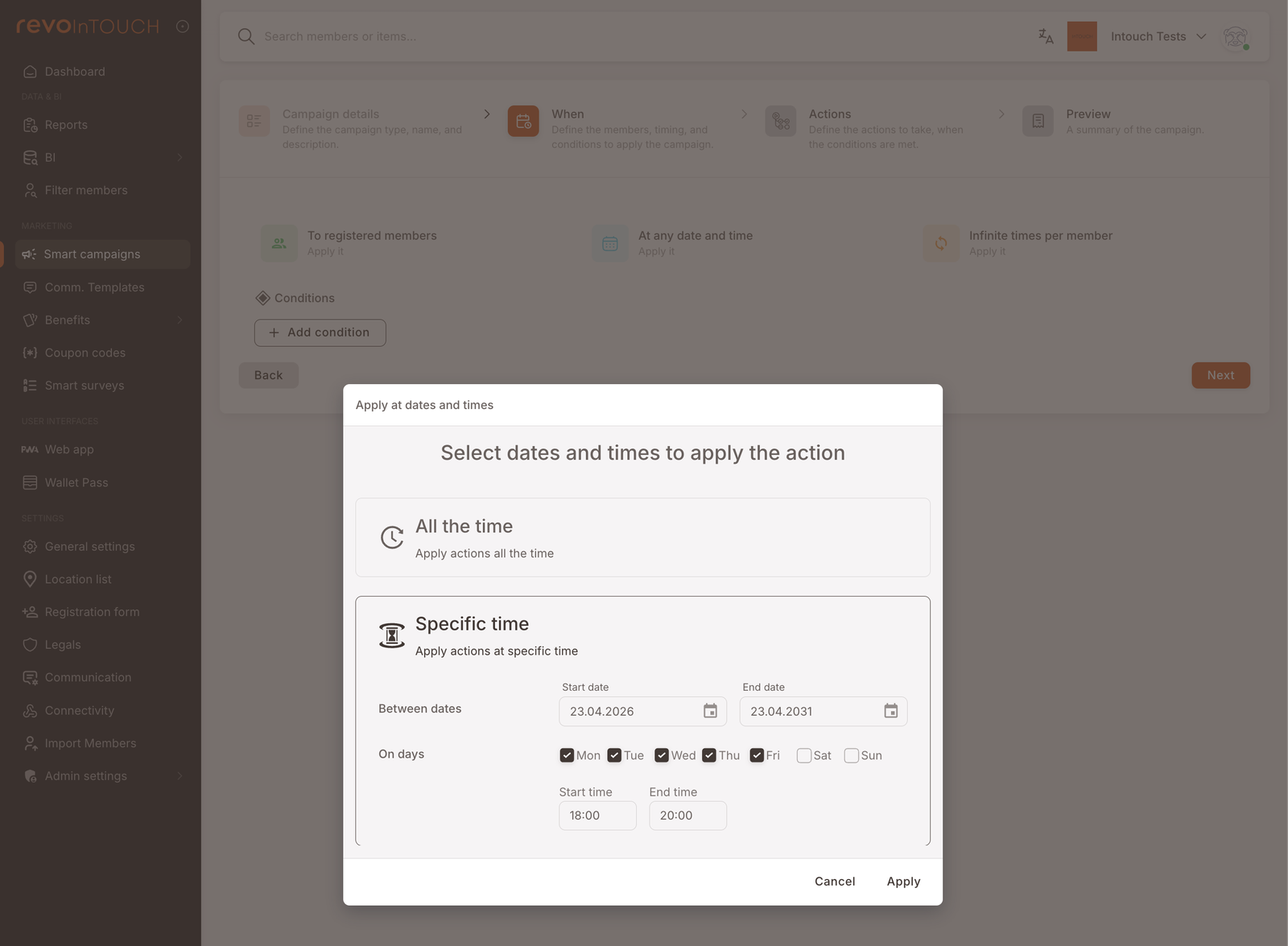
- Timing: Mon–Fri, 18:00–20:00.
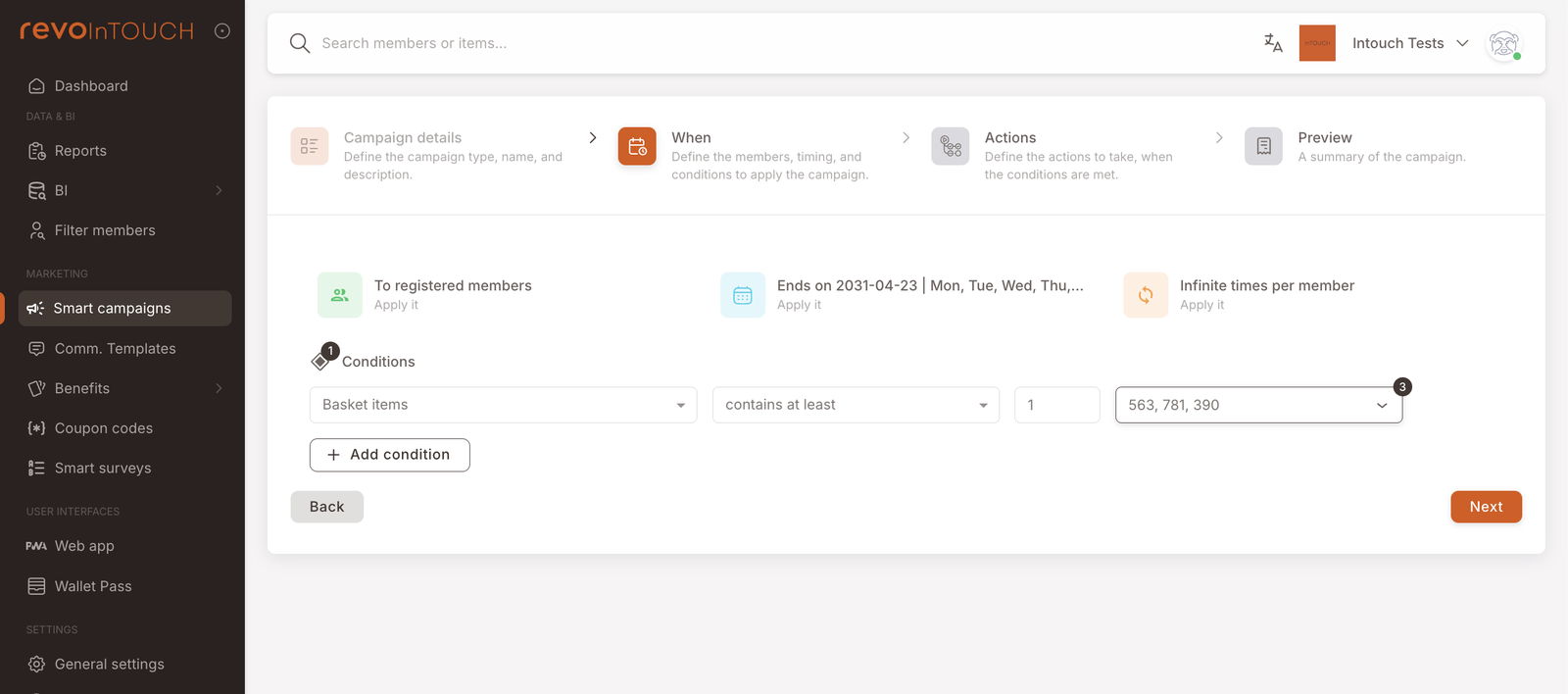
- Condition: Basket items contains at least 1 of [drinks].
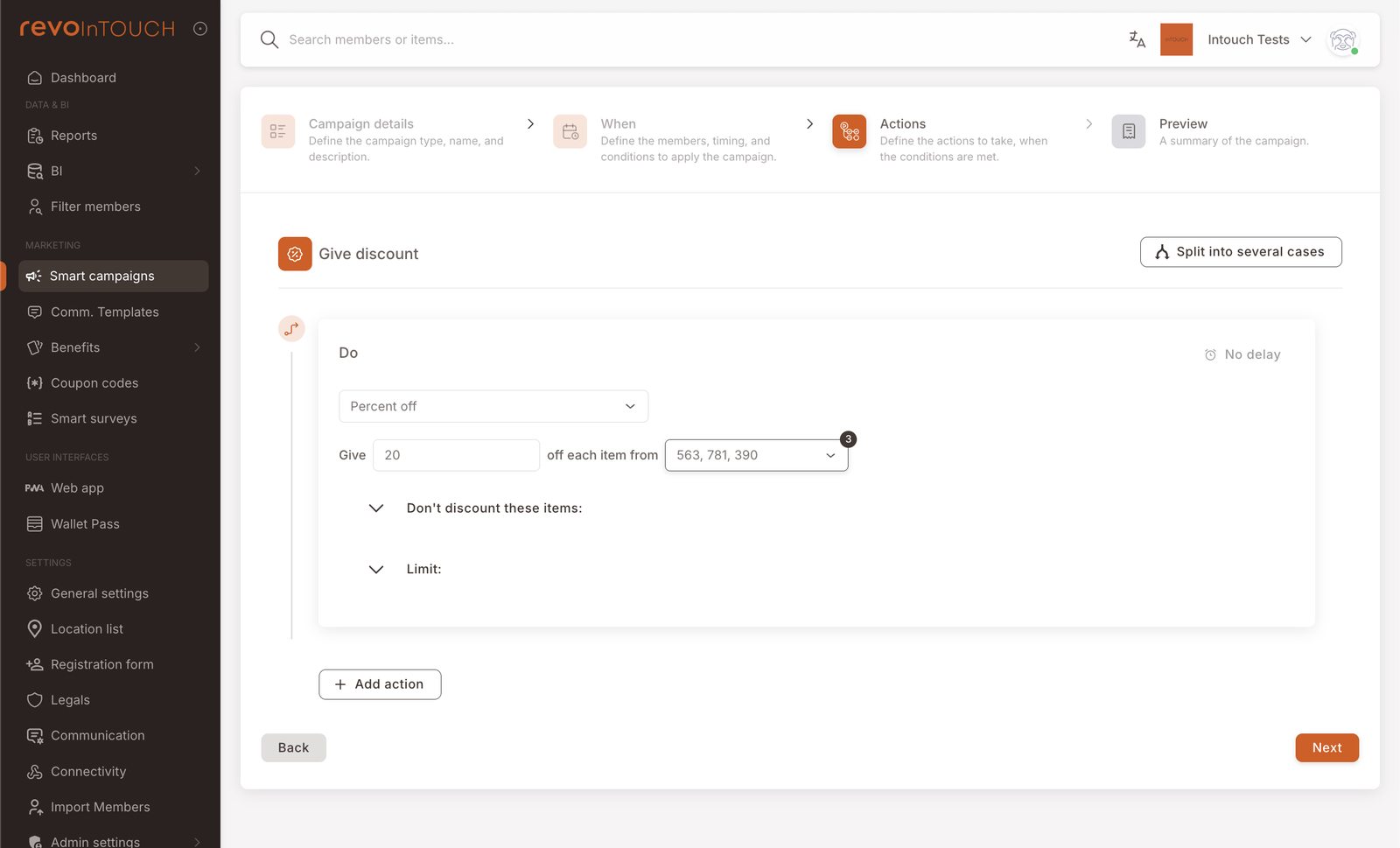
Step 3 — Percent off → Give 20 off each item from [drinks].
Step 4 — Save.
Discount applies automatically to every identified member's check that closes inside the window with a drink in the basket.
This playbook sets up a Deal that applies 20% off any drink between 18:00 and 20:00, Monday to Friday. Deals are silent: they apply automatically at the till whenever the basket, timing, and member-identification conditions are met — no "claim" step, no member-facing opt-in, no notification to the cashier.
It's the first playbook that uses the Deal kind rather than a Rule or Scheduled campaign, so the wizard shape reads a little differently: Step 2 is pure eligibility — who the Deal applies to, when, against what basket — rather than an event trigger.
What you'll build
From the member's point of view:
- The member orders a drink (or a drink plus anything else) between 18:00 and 20:00 on a weekday.
- The member is identified to the check at the POS (phone number, member card, QR — whatever your identification flow uses).
- The check closes before 20:00. Drink line items get a 20% reduction automatically; everything else is unchanged.
Neither the cashier nor the member needs to "apply" or "claim" anything. If the conditions are met, the discount is already in the total when the check closes.
Members aren't notified about Happy Hour automatically. Deals don't show up in the member's Web App, Wallet Pass, or anywhere else member-facing — they're a pricing rule, not a promoted offer. If you want members to know Happy Hour exists, plan a separate communication campaign — the canonical pattern is the Announce a Deal playbook using a Future Campaign.
When to use this
Use a Deal with a time-window restriction when you want a recurring, time-boxed price reduction applied silently at the register to identified members. "Happy hour" is the canonical case — you're smoothing demand into the slower afternoon window by making that window cheaper. "Lunch menu", "weekend brunch", and "early-bird dinner" are the same shape with different hours.
A Deal is the right fit when the discount should happen without the member needing to do anything beyond being identified to their check. If what you want is an after-the-fact reward that the member sees — credits, a thank-you message, a gift — that's a Rule instead.
Before you start
2 prerequisites — drinks group in your catalogue + timezone awareness
Two things to have lined up before you open the wizard:
- The item group or product IDs that count as "drinks" exist in your POS / catalogue. The Deal references drink items directly — both as a basket condition on Step 2 and as the scope of the discount on Step 3. If the items / group aren't set up yet, do that first; the wizard won't let you define them on the fly.
- You know the timezone the Deal will evaluate against. Time-of-day on a Deal is evaluated in the tenant's timezone, not the member's phone clock — so 18:00–20:00 is 18:00–20:00 in your store's local time regardless of where the member is. For a single-timezone tenant this is a non-issue; for a tenant serving multiple timezones, see Gotchas.
Walkthrough
Smart Campaigns live under Marketing → Smart campaigns in the left nav. Click Create campaign to open the four-step wizard.
Step 1 — Campaign details
Pick Deal as the campaign kind. Fill in the Deal name — something unambiguous in the list view, like Happy Hour. Use the Deal description field for the internal context that isn't obvious from the configuration itself: the days and hours, the campaign code, the retirement date. Description is optional, but since Deals have no member-facing copy, the description is the only place future-you can find the "why".
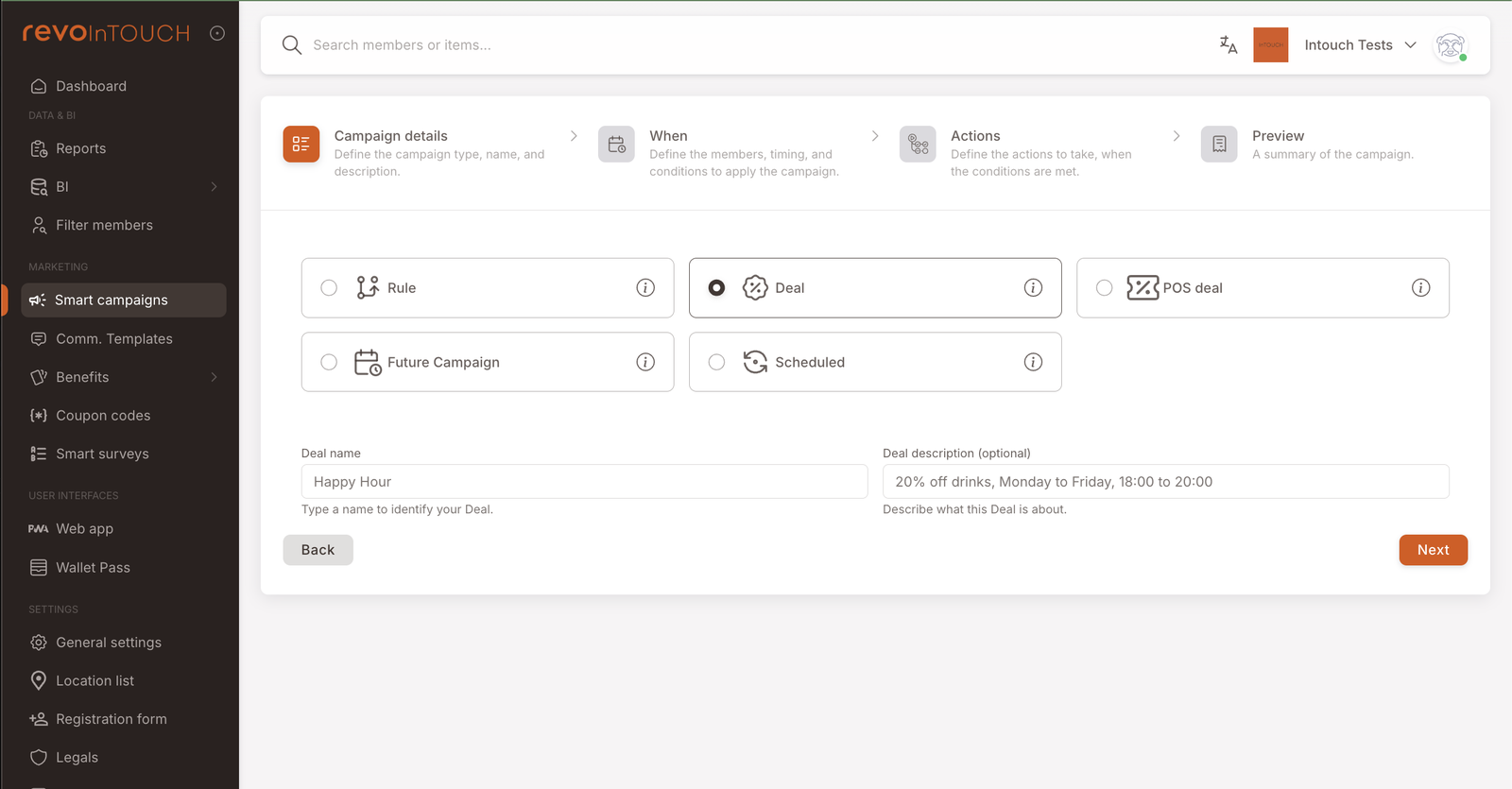
Put the time window in the description ("20% off drinks, Monday to Friday, 18:00 to 20:00"). Six months from now, when someone is scanning the list for which offers to retire, the when-is-this-active is more useful than the what-it-discounts.
Step 2 — When (Eligibility)
Step 2 on a Deal reads differently from a Rule. There's no trigger — instead, you're answering "who does this Deal apply to, when, and against what basket?" The step opens with the same three default tiles a Rule uses — To registered members, At any date and time, Infinite times per member — plus a Conditions section for basket rules.
Audience — leave the first tile at To registered members. The Deal applies to every identified member of the loyalty program. Narrow it to a tag (VIP, Gold) or an attribute segment later if you want a segment-exclusive variant.
Timing — click the At any date and time tile to open the Apply at dates and times modal. This is where all the Happy Hour logic lives. Pick Specific time and configure:
- Between dates — start date today (or launch date), end date open-ended or at the promo's retirement date.
- On days — tick Mon / Tue / Wed / Thu / Fri. Leave Sat and Sun unticked. See Variations for the seven-day version.
- Start time / End time — 18:00 and 20:00. The picker accepts 24-hour format directly.
Click Apply. The tile now reads "Ends on YYYY-MM-DD | Mon, Tue, Wed, Thu, Fri | 18:00 – 20:00" (truncated in the tile; the full value lives inside the picker).
Rate cap — leave the Infinite times per member tile alone for the baseline version. A member who visits twice in the same window should still get 20% off both times. Change it to a per-day or per-total cap later if the budget demands it.
Conditions — Basket items — add one condition under the Conditions section: Basket items — contains at least — 1 — [drinks] (pick the drink items / item group you prepared in the catalogue).
Step 3 — Actions
Deals use a discount-shaped action set — the action picker is headed Give discount rather than the generic Do. For Happy Hour you want a single action:
- In the action dropdown, select Percent off.
- In the Give __ off each item from __ row, enter 20 as the percent and, in the item picker, select the same drinks items / group you referenced in the Step 2 basket condition.
- Leave Don't discount these items and Limit collapsed — neither is needed for the baseline version.
That's the whole action. A single discount, scoped to one item group, applied to every qualifying line in the member's basket.
Step 4 — Preview
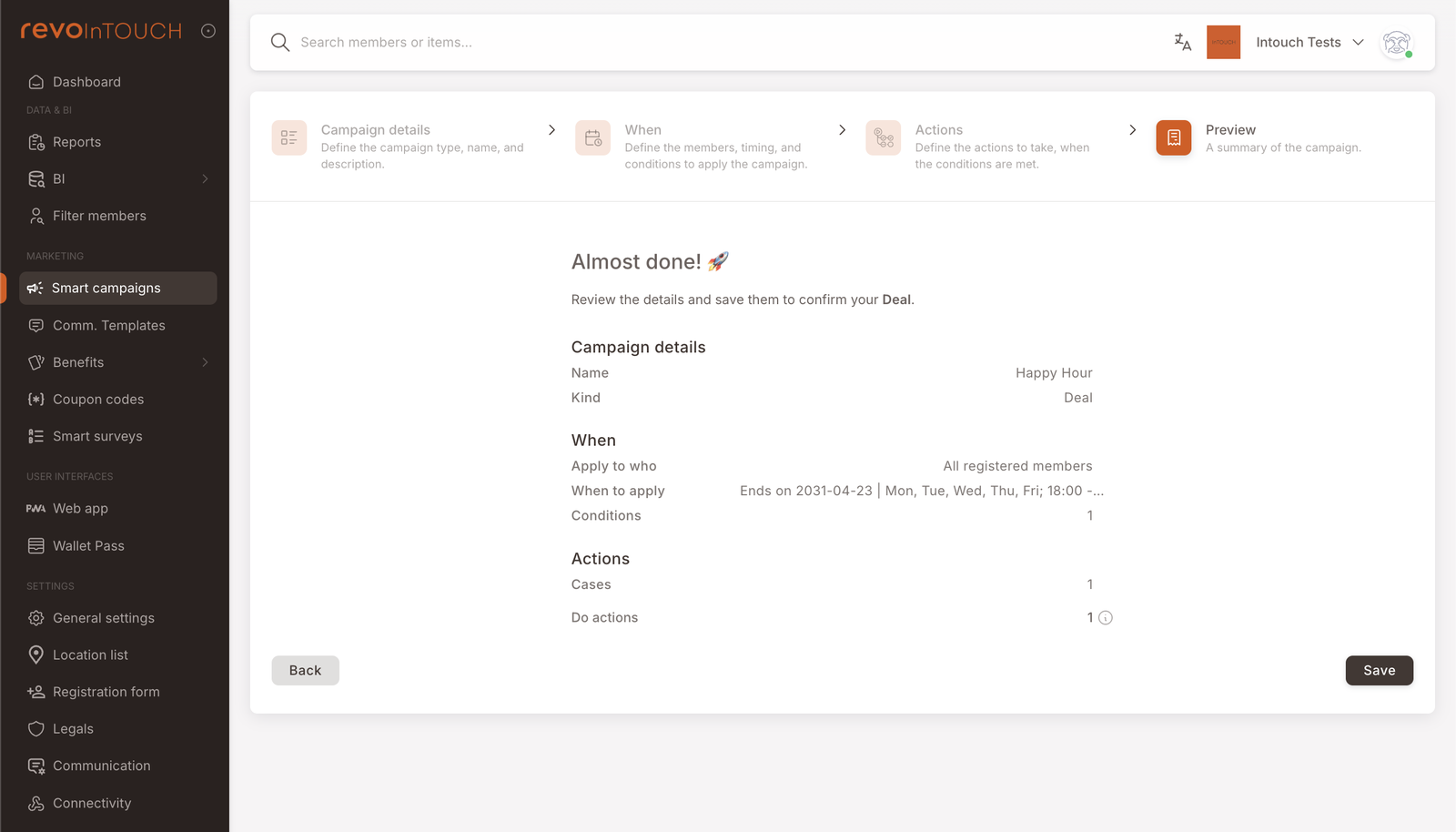
The wizard recaps the whole Deal under an "Almost done!" header. Read the recap and confirm:
- Kind shows Deal.
- When to apply shows Ends on YYYY-MM-DD | Mon, Tue, Wed, Thu, Fri | 18:00 – … and Conditions: 1.
- Actions shows Cases: 1 and Do actions: 1.
Click Save. The Deal starts life as Active and begins applying at the next check that meets all its conditions. If you set the state on Step 1 to Draft, the Deal is saved but won't apply until you flip it to Active from the list view.
How to test it
5-step test using a test-user tag and a check inside / outside the window
Use the same test-user tag pattern as the other playbooks:
- Tag yourself (or a teammate) with
test-userfrom the member's profile page. - On Step 2 of the Deal, narrow the audience to members with the
test-usertag. - Ring up a basket containing a drink under the tagged member at the POS inside the 18:00–20:00 window on a weekday, and close the check. The 20% discount should appear on the drink line(s) automatically; any non-drink items keep full price.
- Repeat with a check that closes outside the window (e.g. 15:00, or 20:05 on a weekday, or any time on a Saturday). The discount should not apply.
- When the test passes, remove the
test-useraudience restriction from Step 2 and save. The Deal is now live for every registered member.
Variations
5 common tweaks — weekends, VIPs, fixed amount, branches, weekday split, daily cap
Seven days a week. Tick Sat and Sun on Step 2's On days picker. Same 18:00–20:00 window, but weekends included too.
Bigger discount for VIPs. On Step 2, narrow the audience to members with the VIP tag and bump Step 3's percent to 30%. Leave the regular 20% Deal for All registered members alongside — because there's no prioritization, a VIP would get both applied. To keep them mutually exclusive, exclude VIPs from the regular 20% Deal's audience (e.g. tag is not VIP) so each member matches exactly one.
Fixed-amount off instead of percent. On Step 3, swap the action type from Percent off to the amount-off equivalent and set the amount to €2. Good when the drink menu is priced tightly and you want a predictable giveaway per drink.
Specific branches only. Add a second basket condition on Step 2 filtering to one or more branch IDs. The Deal will only apply at checks closed at the listed branches.
Different discount Thursday. If Thursday should be 30% instead of 20%, use Split into several cases on Step 3. Put a condition on the weekday (Order datetime is Thursday) in the first case with 30% off, and leave the default case at 20%. The first matching case wins; Thursdays get the bigger cut, the rest of the week gets the standard one.
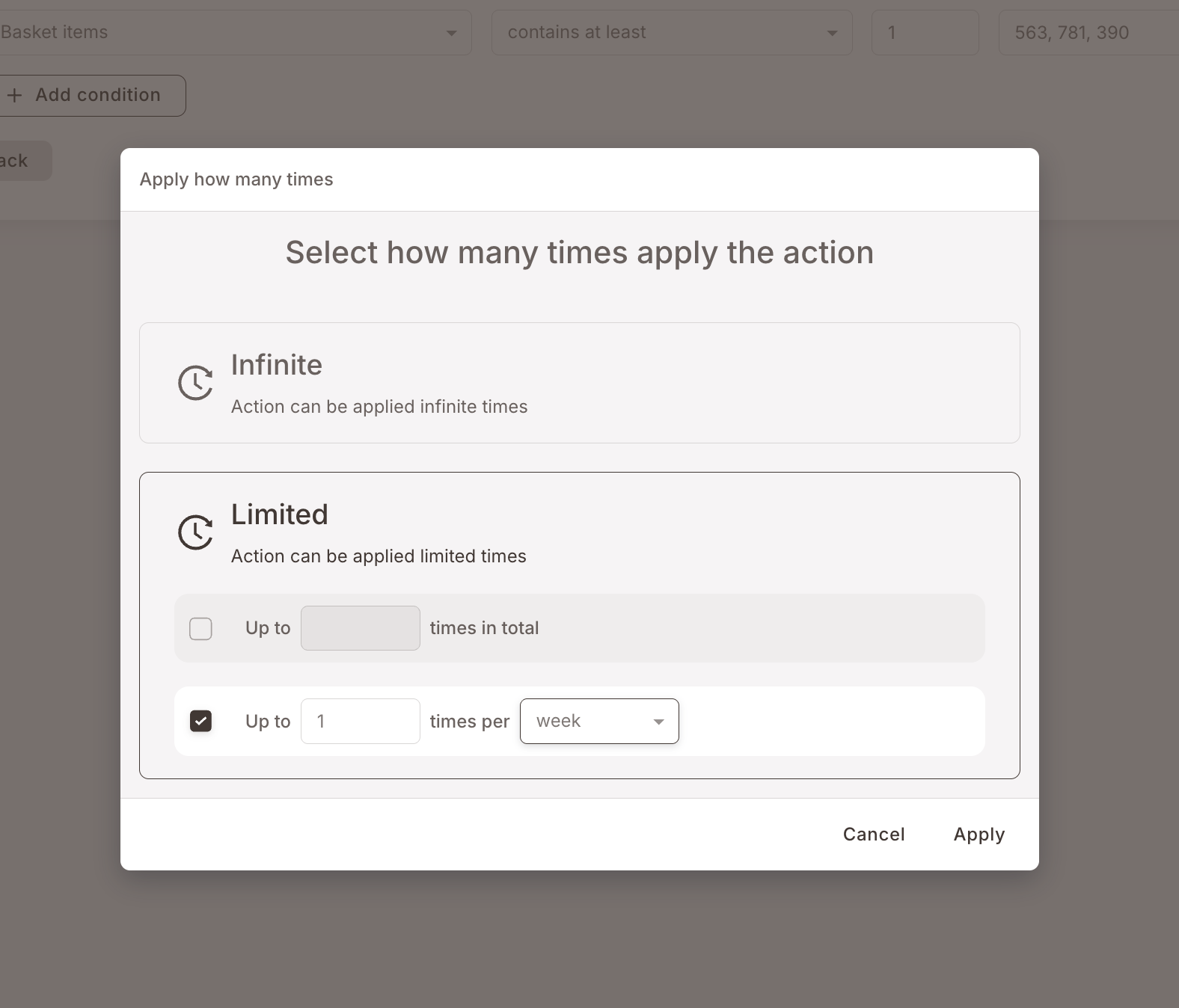
Cap at one discount per member per day (or week). Click the Infinite times per member tile on Step 2 to open the Apply how many times modal, pick Limited, and tick Up to 1 times per day (or week, depending on the cadence you want). Members can still come back outside the cap, but within the bucket the discount only applies once.
Gotchas
5 things to watch for at the till
- The check has to close before 20:00. Eligibility is evaluated at check-close time, not at order-open time. A member who orders at 19:55 but whose check doesn't close until 20:01 will not get the discount. For dine-in venues where checks can sit open, this is worth flagging to the cashier team.
- The member has to be identified to the check. A Deal with audience To registered members only applies when the POS has attached a member to the check. If the cashier forgets to scan the member card / enter the phone number / run the identification flow, the Deal doesn't evaluate and the discount doesn't apply. This is the usual cause of "it's Happy Hour, but I didn't get the discount" support tickets.
- The time window is the tenant's time, not the member's. Time-of-day on a Deal is evaluated against the tenant's configured timezone. If your tenant serves multiple timezones (an international chain, or a tenant whose stores span more than one zone), 18:00–20:00 fires at the same wall-clock moment everywhere — which is "happy hour" locally in one timezone and "lunch" in another. If that's a problem, split the Deal per-region and narrow each to a branch set in that region.
- Every eligible Deal applies — there's no prioritization. The platform doesn't rank or de-dup overlapping Deals. If the same member is eligible for a second Deal that also covers drinks (a seasonal promo, a VIP-only one), both apply to the basket side-by-side. Plan the discount shapes so overlapping Deals compose the way you intend, or use audiences / basket conditions to keep them mutually exclusive.
- Members won't know Happy Hour exists unless you tell them. Deals don't push a notification, don't render in the member's app, and the cashier isn't alerted either — the discount just shows up in the total. If visibility matters for the campaign's success (and for happy hour it usually does), run a separate announcement campaign — see the Announce Happy Hour playbook.