Summarize with AI
Gift Performance Report
In short
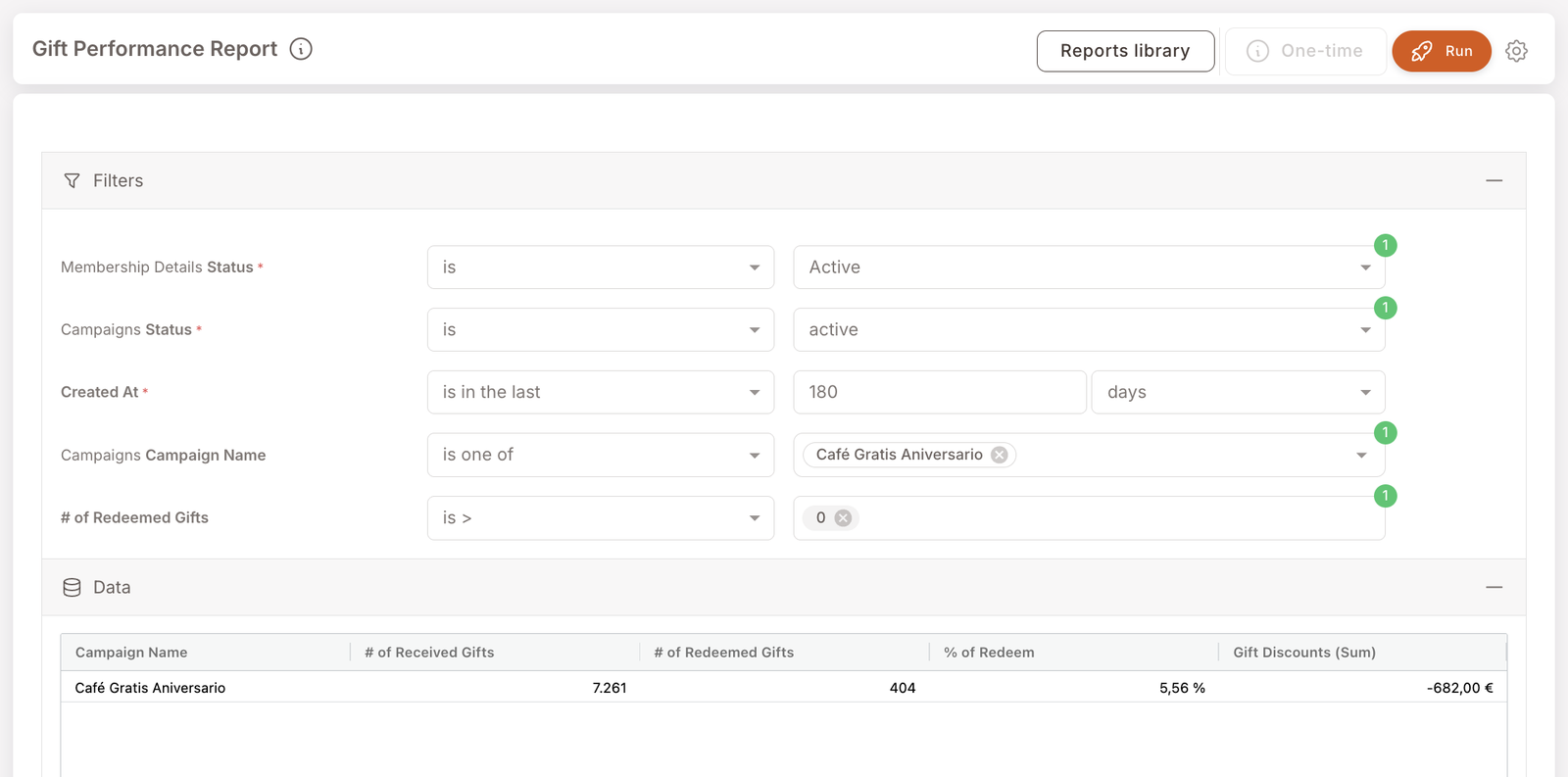
The campaign-impact view for Gifts. For each campaign that issued Gifts in the period, you'll see how many Gifts were issued, how many were redeemed, the redemption rate (%), and the total monetary value of the discount those redeemed Gifts produced. This is the most direct "did my Gift-based campaign work?" answer in the library.
Use this report after a Gift-issuing campaign — Birthday Gift, anniversary, welcome, VIP launch — has been running for a while. The key number is the % of Redeem: low single digits is normal for a passive birthday Gift, double digits suggests members are actively engaging.
What you'll see
Required filters:
- Membership Details Status — typically Active.
- Campaigns Status — typically Active.
- Created At — date range, often longer than other reports because Gift redemption is slow (the screenshot uses is in the last 180 days).
Optional filters:
- Campaign Name — narrow to one or more campaigns.
- # of Redeemed Gifts — typically is > 0 to skip campaigns where nothing has been redeemed yet.
Data columns (per campaign):
- Campaign Name — the Smart Campaign that issued the Gifts.
- # of Received Gifts — how many Gifts were issued by this campaign in the period.
- # of Redeemed Gifts — how many of those issued Gifts were actually redeemed at the till.
- % of Redeem — redemption rate (Redeemed / Received).
- Gift Discounts (Sum) — total currency value of the discounts produced by the redeemed Gifts (shown as a negative — -682.00 € means redeemed Gifts produced 682€ of total discount).
- Sales with Gifts — total revenue of the checks on which a Gift from this campaign was redeemed. This is the campaign's attributable turnover — divide by # of Redeemed Gifts for the average basket on a Gift redemption.
When to reach for this report
4 common use cases
- Did the Birthday campaign work? Run filtered to the Birthday Gift campaign over the last 6 months. Check the redemption %.
- Compare campaigns side-by-side. Leave Campaign Name unfiltered to see all campaigns that issued Gifts in the period — quick way to see which ones members actually act on.
- Liability check before retiring a Gift. Before you set a Gift template to Paused, run this report to see how many issued copies are still outstanding (Received minus Redeemed) — those members might still try to redeem.
- Demo / partner walkthrough. This is the report that quantifies the loyalty program's promotional cost in a single number — useful for ROI conversations.
What to do with the result
Follow-on actions
- Low redemption rate? Add or change the announcement. Members aren't notified about Gifts unless you tell them — if the Gift is in their wallet but they don't know, redemption stays low. Build an Announce-style Future Campaign or a follow-up Rule.
- High redemption + low % of Received? Maybe scale the issuance. If the redemption rate is high but few Gifts are getting issued (low Received count), the bottleneck is upstream — adjust the issuing Rule's audience or trigger.
- Retire underperformers. Campaigns at near-zero redemption over 6 months are candidates for retirement. Pause first (don't delete), monitor for a month, then delete if nothing surfaces.
Related reports
- Discounts — Deal-style discounts (applied at till, no Gift asset). Sister report on the price-reduction side.
- Credits — the credits-currency equivalent of this report.
- Member purchases — drill in to see which members redeemed.